Integration · Project management
ClickUp AI agents for tasks, docs, and time
Brainwrite connects ClickUp to your AI agents so they can create tasks and checklists, comment on work, edit ClickUp Docs, and read tracked time. A bot can turn a client brief into a list of tasks, keep a Doc page up to date, or total the week's time entries by person. Each bot gets only the ClickUp tools you grant it.
 Brainwrite · ClickUp
Read the time entries in ClickUp for last week, total them by person and by list, and flag anyone over 45 hours. Post the table here.


You connect ClickUp once. Your Chief of Staff puts a bot on it.
- Create tasks, subtasks, and tasks from a templateWaits for you
- Update tasks, add tags, and move a task to another listWaits for you
- Create checklists and checklist items on a taskWaits for you
- Comment on tasks and lists, including threaded replies
- Create Docs and pages, and search DocsWaits for you
In ClickUp
What your bots can do in ClickUp.
- Create tasks, subtasks, and tasks from a template
- Update tasks, add tags, and move a task to another list
- Create checklists and checklist items on a task
- Comment on tasks and lists, including threaded replies
- Create Docs and pages, and search Docs
- Read time entries in a date range and start or stop a timer
- Create and update goals
Chief of Staff
- Brief to task list
- Weekly time summary
- Living project Doc
Changes in ClickUp wait for your approval in Ask mode
Jobs
Jobs your team does with ClickUp.
Brief to task list
Hand a bot a client brief. It creates the tasks, adds a checklist for each deliverable, and sets due dates you confirm.
Weekly time summary
A routine reads the week's time entries, totals them by person and list, and posts the summary to a thread for billing.
Living project Doc
A bot updates a ClickUp Doc page with decisions and open questions after each meeting, so the doc matches what was agreed.
Set up
How to connect ClickUp.
- 01
Open Connected apps
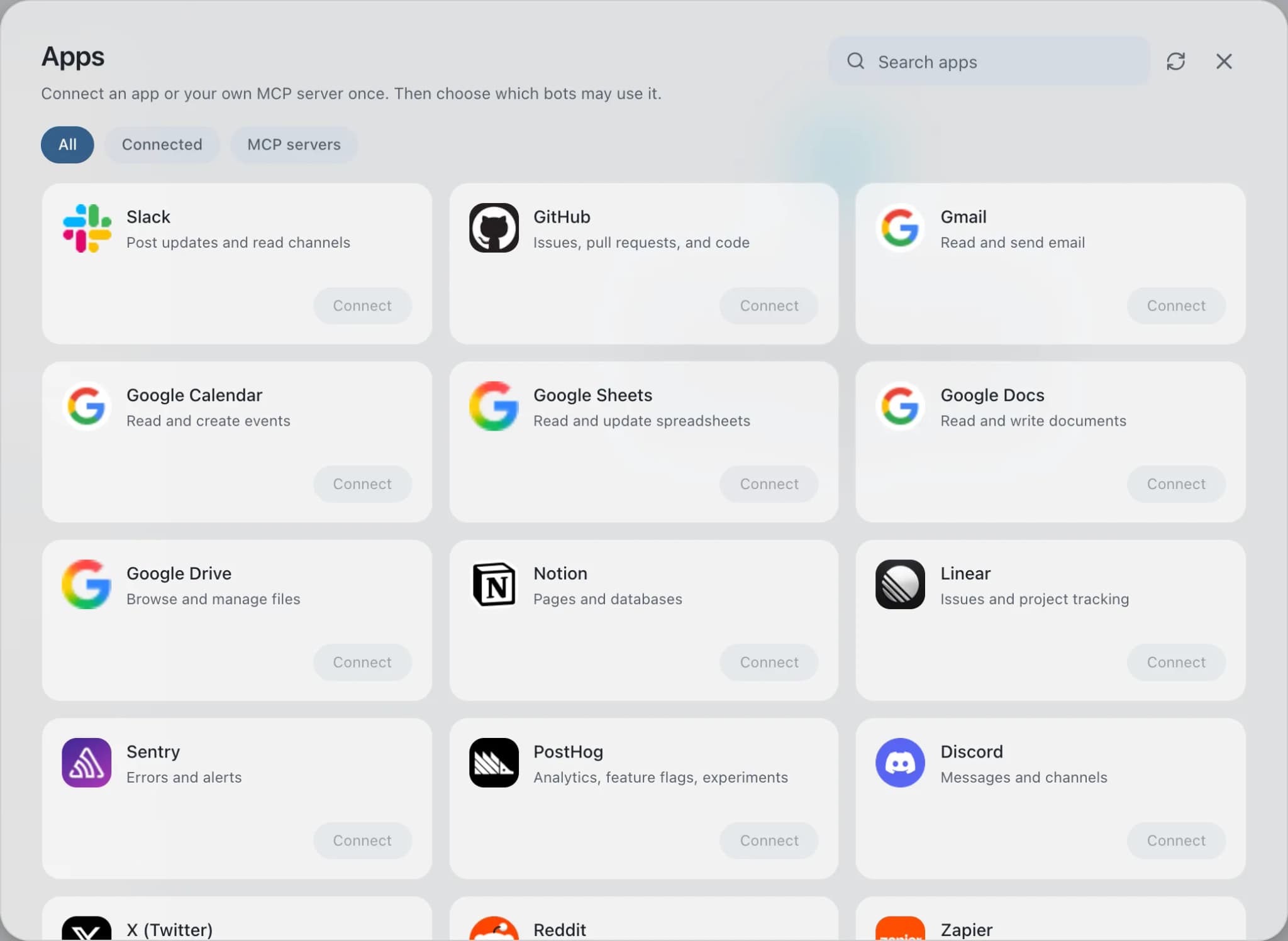
In Brainwrite, choose Connected apps in the sidebar. The official app sets up the connection service for you; there's no key to paste.
- 02
Search for ClickUp
Find ClickUp and choose Connect. You can add more than one account later and label each, such as work or a client.
- 03
Sign in in your browser
Finish ClickUp's own sign-in in your normal browser. The access token stays with the connection service and never enters a bot's prompt.
- 04
Choose which bots get it
In each bot's settings, give it all tools, an exact list, or none. Imported bots start with none, so nothing reaches your account by surprise.
Put it to work
Use cases with ClickUp.
Weekly report
Each Friday the Chief of Staff gathers shipped work, open issues, and pipeline changes into one report you approve.
Operations
Customer onboarding
A payment webhook starts a task; a bot prepares the welcome email, project, and kickoff invite for your approval.
Operations
Launch campaign
Maya, Echo, Orbit, and Lens turn a launch into one bet, one message, a channel plan, and a stop-or-scale rule.
Marketing
FAQ
Brainwrite and ClickUp: questions
How do I connect ClickUp to Brainwrite?
Open Connected apps, search for ClickUp, and choose Connect. ClickUp's authorization opens in your browser; pick the workspace and approve. When you come back, give the account a clear label such as agency or client-acme. Tokens stay with Composio and are never placed in a bot's prompt.
How do I limit what a bot can change in ClickUp?
Under Connected apps in the bot's settings, choose all ClickUp tools, an exact list, or none. A reporting bot can get time-entry and task read tools only. A planning bot can add task creation and checklists while delete tools stay off. Ungranted tools are never offered to the model.
Can a bot track time in ClickUp for me?
The connector can start and stop a timer, create a time entry, and edit tracked time. That makes it possible, but it is usually better to let a bot read entries and flag gaps, and have people log their own hours. Grant the write tools only to a bot you trust with timesheets.
Project management
More project management.

Asana
Turn meeting notes into Asana tasks, chase overdue work, and draft project status updates from the real task list.

monday.com
Create monday.com items, change statuses, post updates, and get a weekly summary of what is stuck on a board.

Trello
Add Trello cards with checklists, move them between lists, set due dates, and spot cards stuck on a board.

Todoist
Add Todoist tasks in plain language, plan your day from what is due, and review what you finished last week.





Give your AI team ClickUp.
Download the app, connect the AI you already pay for, and tell your Chief of Staff what needs doing.
macOS today. Windows and Linux are coming soon.