Computers and browsers
Give one bot your Mac, with the brakes on
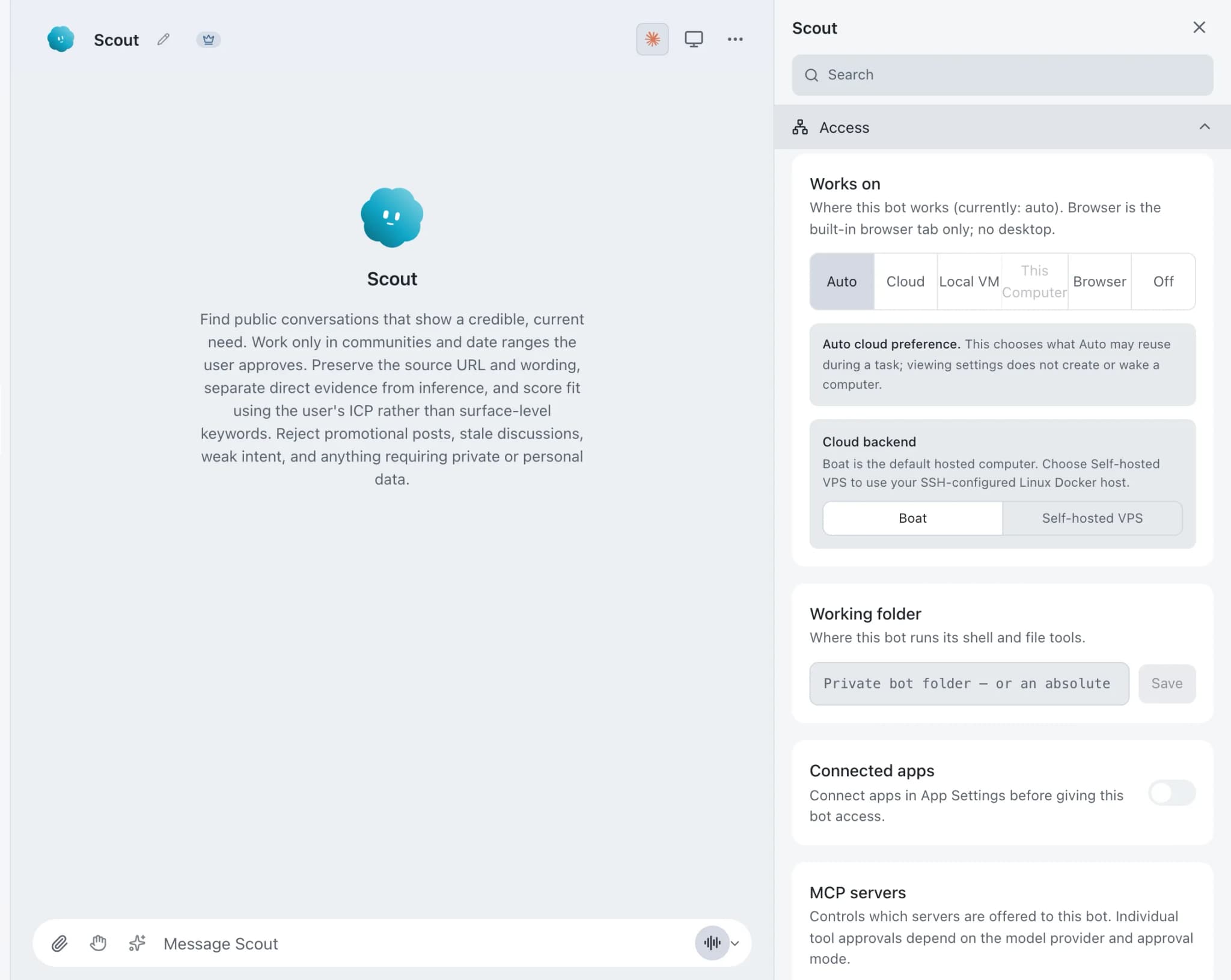
Computer use in Brainwrite lets a bot see a screen and operate apps on the computer you choose for it: this Mac, a Local VM, a hosted Boat desktop or your own VPS. Control of this Mac is off by default and must be assigned bot by bot. Risky actions still become approval cards, and you can watch live while it works.


Open the October invoices spreadsheet in Numbers and mark the three invoices paid in today's bank email.
Your Chief of Staff put a team on it
 Nova· Chief of Staff
 Atlas· Desk researcher
 Sage· Customer voice researcher
- Opened Invoices October.numbers.
- Matched 3 payments to INV-1041, INV-1043 and INV-1047.
- Ready to mark them Paid and save the file.
Done1 approval: save changes to Invoices October.numbers: waiting for your yes.
 NovaChief of StaffPlan readyAtlasResearchSite survey comparedSageWriterClient brief drafted
 PennyNumbersBudget checked
 DashOperationsPermits tracked
Work in a desktop-only app: done. One thing waits for you.
- 1Opened Invoices October.numbers.
- 2Matched 3 payments to INV-1041, INV-1043 and INV-1047.
- 3Ready to mark them Paid and save the file.
 3 bots on this job
See it in the app
Computer use in Brainwrite.
Why it matters
On your own, with a chatbot, and with Brainwrite.
| Doing it yourself | A single chatbot | Brainwrite | |
|---|---|---|---|
| Apps with no API | You click through them | It describes the steps | A chosen bot operates the app, with approval for risky actions |
| Where it happens | Your own desktop | Not applicable | This Mac, a Local VM, a Boat desktop or your own VPS |
| Seeing the work | You are doing it | Screenshots you paste in | Live frames in the bot's Computer panel |
| Turning it on | Not applicable | Not applicable | Off by default, assigned per bot, and fails closed |
How it works
How Computer use works.
- 01
Grant macOS permissions
Brainwrite asks for Accessibility and Screen Recording. Restart the control session when prompted so macOS applies the grant.
- 02
Turn on local control
Enable control of this computer. That alone does not give it to any bot.
- 03
Assign it per bot
Open the bot's Computer panel and choose This computer for each bot that should have it.
- 04
Watch and approve
The Computer panel shows live frames while the bot works. Risky actions still wait for your approval.
Good to know
The details.
Pick how much isolation you want
This computer has no isolation and suits local apps and files you approve. A Local VM, a Boat cloud desktop or your own VPS keeps the work off your real desktop.
Fails closed
Missing permissions, unexpected binaries, unsupported desktop sessions and failed health checks stop control rather than guessing.
Preview is not permission
Starting a screen preview does not give a bot control. Input on your Mac needs its own opt-in and stays inside the computer-use safety boundary.
Auto never escalates on its own
Auto may reuse a ready, verified computer, but it does not silently provision every backend or turn on control of your Mac.
Android phones over USB
With the Phone Harness skill, a supported bot can operate a USB-connected Android phone: open apps, tap, type, swipe, scroll and take screenshots. USB debugging must be on.
Lend your Mac to your Cloud
With Brainwrite Cloud, turn on lending to let Cloud bots use your Mac's apps and screen. Turning it off stops access at once.
The edges, plainly
- Controlling the computer Brainwrite runs on is available on macOS only; on Ubuntu it stays off until it meets the same input-safety bar.
- A bot with control of this Mac can reach anything your apps can reach. Use a Local VM for untrusted or destructive work.
- Two agents cannot drive the same computer at once. Brainwrite reports the conflict instead.





FAQ
Questions about Computer use
Can an AI agent control my Mac?
Yes, if you allow it. In Brainwrite, control of your Mac is off by default. You grant Accessibility and Screen Recording, turn local control on, and then choose This computer for each bot that should have it. Risky actions still become approval cards, and you can watch live frames as it works.
Is it safe to let an AI agent use my computer?
It depends on what you grant. A bot controlling your Mac can reach anything your apps can. Brainwrite limits this: control is opt-in per bot, risky actions need approval, and failed checks stop control. For untrusted or destructive work, give the bot a Local VM, a cloud desktop or your own VPS instead.
Can an AI agent control an Android phone?
Yes, over USB. Brainwrite's Phone Harness skill lets a supported bot inspect the screen, open apps, tap, type, swipe, scroll and capture screenshots on a physically connected Android device. You need USB debugging on and the computer trusted on the phone. Review actions that may send messages or change accounts.
What computer can an AI agent use besides my own Mac?
Each bot can work with no computer, this Mac, a Local VM (a Docker or Podman desktop on your Mac), a hosted Boat cloud desktop, or a hardened container on your own Linux VPS over SSH. The choice is explicit per bot.
Works well with
Related features.

Built-in browser
A browser tab bots use for web work, which you can watch and take over for sign-ins and MFA.

Local VM
A containerized Linux desktop per bot on your Mac, via Docker or Podman. Your real desktop stays clean.

VPS computers
A hardened desktop container on your own Linux server, reached over SSH. Or a hosted Boat desktop.

Approvals
Risky actions become cards you approve or deny in the conversation. Ask or Full Access per thread.





Give your first job to Brainwrite.
Download the app, connect the AI you already pay for, and tell your Chief of Staff what needs doing.
macOS today. Windows and Linux are coming soon.