Automation
Turn a good prompt into work that happens on time
Routines in Brainwrite run a bot's task once, at a repeating interval, or on the weekdays you choose. Each run starts fresh with that bot's model, permissions, tools and computer, and leaves a receipt showing whether it was queued, active, waiting, completed, missed, failed or cancelled. Reports can collect in one dedicated thread you read each morning.


Every weekday at 8:00, check my inbox and calendar and post a short brief to the Reports thread.
Your Chief of Staff put a team on it
 Nova· Chief of Staff
 Atlas· Inbox specialist
 Dash· Schedule and task specialist
- 3 meetings today. The first is 9:30 with Northwind Studio.
- 2 emails need a reply. Drafts are in the run.
- 1 invoice reminder is due Friday.
- Run status: completed.
Done2 reply drafts to approve before they send: waiting for your yes.
 NovaChief of StaffShowing prep done
Morning brief, weekdays at 8:00: done. One thing waits for you.
- 13 meetings today. The first is 9:30 with Northwind Studio.
- 22 emails need a reply. Drafts are in the run.
- 31 invoice reminder is due Friday.
 3 bots on this job
See it in the app
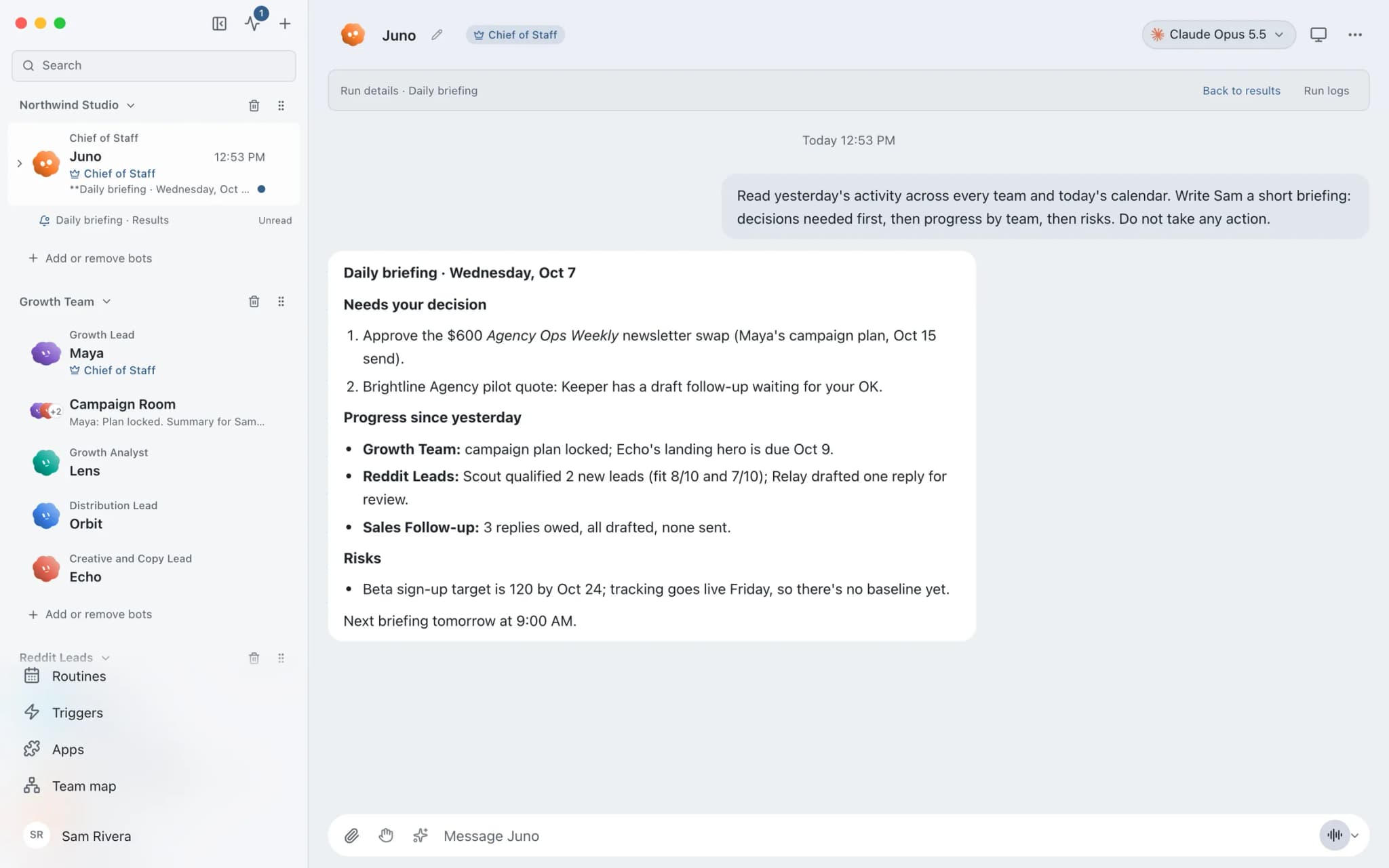
Routines in Brainwrite.
Why it matters
On your own, with a chatbot, and with Brainwrite.
| Doing it yourself | A single chatbot | Brainwrite | |
|---|---|---|---|
| Recurring jobs | Remember to do it each time | Paste the same prompt again | Runs once, at an interval, or on chosen weekdays |
| Context for each run | Whatever you recall | Builds on one long conversation | Each run starts fresh with the bot's current setup |
| Track record | Your own notes | Scroll the history | Receipts: queued, active, waiting, completed, missed, failed, cancelled |
| When you are away | It waits for you | It waits for you to ask | Brainwrite Cloud runs routines 24/7; local ones need the app open |
How it works
How Routines works.
- 01
Create the routine
Add it in the Routines section of a bot's settings, or ask the bot in chat to schedule the task.
- 02
Pick the timing
Choose once, a repeating interval, or selected weekdays.
- 03
Choose where results go
In the routine's editor, set Post results to an existing thread or choose Create a dedicated results thread. You can move it into a folder such as Reports.
- 04
Read the reports
Each run is titled with the routine name and start time, such as Daily briefing · Oct 3, 9:00 AM. Use Open run for its conversation and approvals, then Back to results.
- 05
Check the logs
Run logs keeps the execution history, including failed and waiting runs.
Good to know
The details.
Fresh context every run
A run does not inherit leftovers from the last one. It starts with the bot's current model, permissions, tools and computer.
Approvals still apply
If a run needs your approval, it waits. Open run on the report takes you straight to the conversation and the card.
Background threads stay out of the way
Execution threads stay out of the normal sidebar. If you delete a results thread, they become visible so you can still inspect them and answer approvals.
Clear unread dots in one go
Right-click a folder and choose Mark folder as read. It clears unread dots but does not answer approvals or stop running work.
Changes apply forward
Changing where results post affects future runs, not the report links for older ones. Routines created in chat keep reporting to that conversation unless you change it.
The edges, plainly
- Local routines need Brainwrite running on your Mac when they come due. Closing the app stops the local executor.
- To run routines while your Mac is asleep or off, use Brainwrite Cloud, which runs them 24/7.
- Routines from the team library install paused until you turn them on.
Use cases
Jobs this feature does for you.





Works with
Apps it's often used with.
Gmail
Bots search, label, and read Gmail threads and draft replies in place. Sending waits for your approval.

Slack
Bots search Slack, summarise channels and threads, and post or schedule updates once you approve.

Google Calendar
Bots read your Google Calendar, find free slots, and create or move events. Invites wait for your approval.
Google Sheets
Bots read and write Google Sheets, append and upsert rows, and add charts to trackers and reports.
FAQ
Questions about Routines
Can AI agents run on a schedule?
Yes. A Brainwrite routine runs a bot's task once, at a repeating interval, or on the weekdays you pick. Each run starts fresh with the bot's model, permissions, tools and computer, and leaves a receipt. You can create one in the bot's Routines settings or by asking the bot in chat.
Do scheduled AI agents run when my Mac is asleep or the app is closed?
Local routines do not. Brainwrite must be running when a local routine comes due, and closing the app stops the local executor. Brainwrite Cloud runs your bots, routines included, around the clock on your own always-on Cloud computer, even when your Mac is asleep or switched off.
What happens if a scheduled AI task needs approval?
The run waits for you. Its receipt shows it as waiting, and the report links to it. Choose Open run to see the conversation and answer the approval card, then Back to results. Run logs lists waiting and failed runs, so a stalled run does not go unnoticed.
Can I get all my scheduled agent reports in one place?
Yes. In the routine's editor, set Post results to a thread or choose Create a dedicated results thread. Each run still gets its own execution context, while the dated reports collect in that one thread. You can file it in a folder such as Reports.
Works well with
Related features.

Webhooks
Start a bot's task from an HTTP event, through a separate local receiver with secret routes.

Brainwrite Cloud
Your own always-on computer that runs your bots 24/7, routines included. $99 a month.

Chief of Staff
One bot takes your request, hands focused tasks to specialists, and returns a single summary.

Approvals
Risky actions become cards you approve or deny in the conversation. Ask or Full Access per thread.





Give your first job to Brainwrite.
Download the app, connect the AI you already pay for, and tell your Chief of Staff what needs doing.
macOS today. Windows and Linux are coming soon.