Teams and agents
Memory you can open, correct and delete
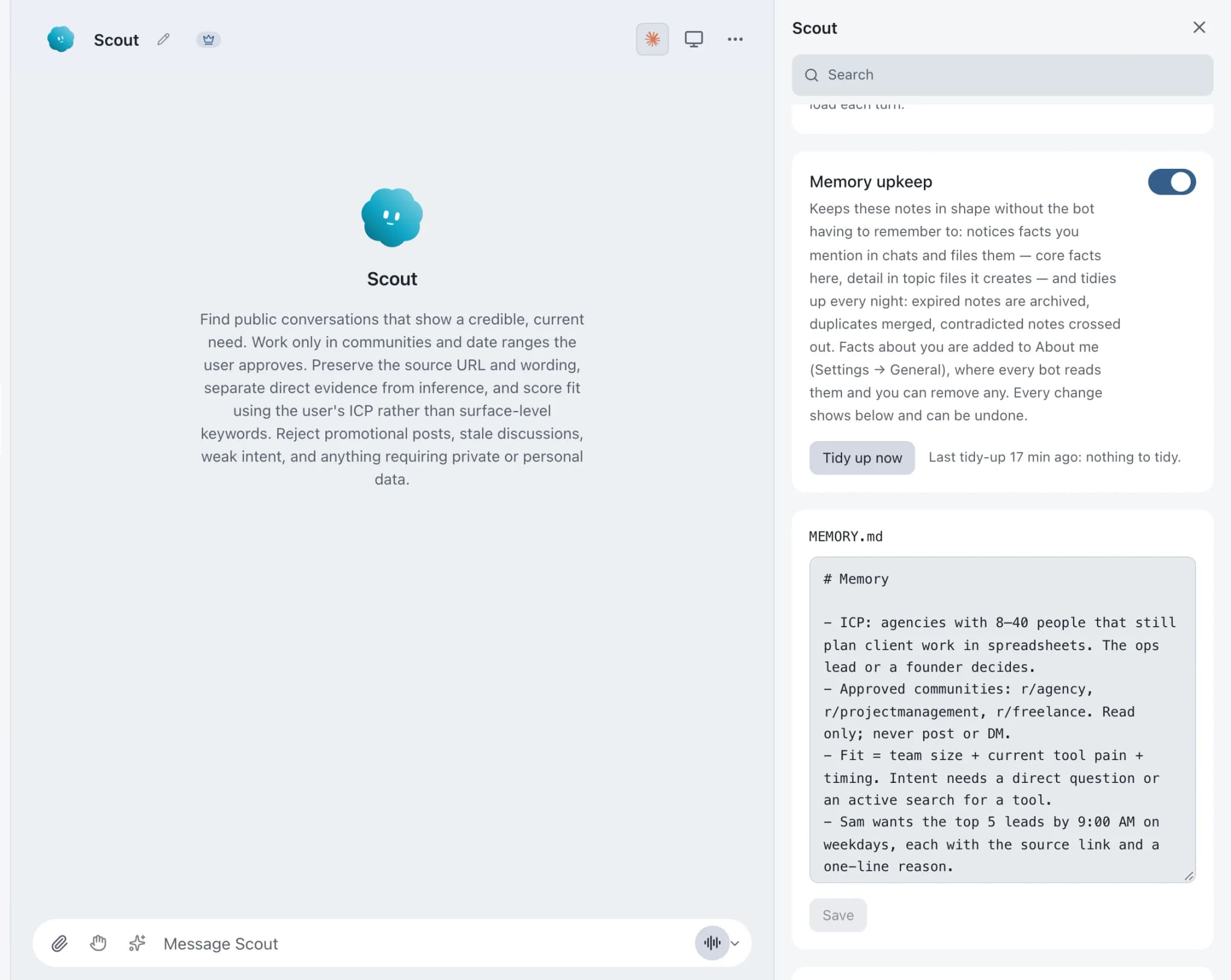
Bot memory in Brainwrite is plain text that each bot keeps and that you can inspect, correct or delete at any time. It lives with your local Brainwrite data, not in a hidden remote profile. Every thread with a bot shares its saved memory, and a separate About me profile holds what you want every bot to know about you.


What do you remember about how I like client updates written?
Your Chief of Staff put a team on it
 Nova· Chief of Staff
 Dash· Inbox triager
 Sage· Reply drafter
- Keep updates under 150 words.
- Lead with decisions, then open questions.
- Northwind Studio prefers updates on Tuesdays.
- Edit or delete any of these notes in my memory settings.
DoneDone. Nothing was sent.


Check what a bot remembers: done. Nothing sent.
- 1Keep updates under 150 words.
- 2Lead with decisions, then open questions.
- 3Northwind Studio prefers updates on Tuesdays.
 3 bots on this job
See it in the app
Memory in Brainwrite.
Why it matters
On your own, with a chatbot, and with Brainwrite.
| Doing it yourself | A single chatbot | Brainwrite | |
|---|---|---|---|
| What it knows about you | It is all in your head | Depends on the product's memory settings | Plain-text notes per bot that you can read |
| Fixing a wrong note | Not applicable | Depends on the product | Edit or delete the note directly |
| Where it lives | Your notes | Usually with the provider | With your local Brainwrite data |
| Telling every assistant once | Repeat yourself | Per-product settings | About me goes to every bot, across providers |
How it works
How Memory works.
- 01
Set it up with the bot
The New bot dialog has a Memory section alongside Identity, Skills and Routines. Review it before you choose Create bot.
- 02
The bot keeps notes
As it works, the bot keeps plain-text memory. Every thread with that bot can draw on it.
- 03
Review and correct
Open the bot's settings to read what it remembers. Fix anything that is wrong, or delete it.
- 04
Tell every bot about you once
Write your preferences, background or working hours in Settings → General → Profile → About me. It saves automatically and shows Saved.
Good to know
The details.
Shared across a bot's threads
All of a bot's threads share its saved memory and skills. They do not automatically see each other's full transcripts.
About me is workspace-wide
About me goes into the instructions for later private and group turns across every provider, up to 24,000 characters. Clear the field to stop including it.
Defaults for new bots
Settings → General → Defaults for new bots → Edit sets the starting memory, skills and routines for future bots without changing existing ones.
Folders do not split memory
Sidebar folders only organise threads. They do not duplicate a bot's memory or skills.
Changed memory gets flagged on Cloud
On Brainwrite Cloud, if a bot's memory was changed in a conversation you did not write, that bot cannot use your lent Mac until you check the notes and choose Mark reviewed.
The edges, plainly
- About me is sent to your model provider with bot requests. Keep secrets out of it.
- Clearing About me stops future use, but does not erase what is already in conversation history.
- Memory is stored with your local Brainwrite data, so on a shared machine other administrators may be able to read it. Use a dedicated OS account for stronger separation.
Use cases
Jobs this feature does for you.




Works with
Apps it's often used with.



FAQ
Questions about Memory
Do AI agents remember previous conversations?
In Brainwrite, each bot keeps plain-text memory that all of its threads share. Threads do not automatically receive each other's full transcripts, so memory holds what the bot saved rather than everything ever said. You can read, correct or delete that memory at any time.
Can I see and edit what my AI agent remembers?
Yes. A bot's memory is plain text you can open from its settings, correct, or delete. It is not a hidden profile on a remote server; it lives with your local Brainwrite data. If a bot remembers something wrong, fix the note and later turns use the corrected version.
Where is AI agent memory stored?
With your local Brainwrite data on your computer, not in a hidden remote profile. Brainwrite assumes the logged-in OS user owns the workspace, so on a shared machine other administrators may be able to read app data. Use a dedicated OS account if you need stronger separation.
How do I tell all my AI agents the same thing about me?
Use Settings → General → Profile → About me. Whatever you write there, up to 24,000 characters, is included in the instructions for later private and group turns with every bot, across providers. It is sent to the model provider, so do not put passwords or keys in it.
Works well with
Related features.

Threads and groups
Up to three independent threads per bot, plus group chats where several bots share one brief.

Chief of Staff
One bot takes your request, hands focused tasks to specialists, and returns a single summary.

Secrets
Bots use API tokens by name. The value goes only to one https site and never reaches the chat.





Give your first job to Brainwrite.
Download the app, connect the AI you already pay for, and tell your Chief of Staff what needs doing.
macOS today. Windows and Linux are coming soon.