Teams and agents
Start with a team that already knows the job
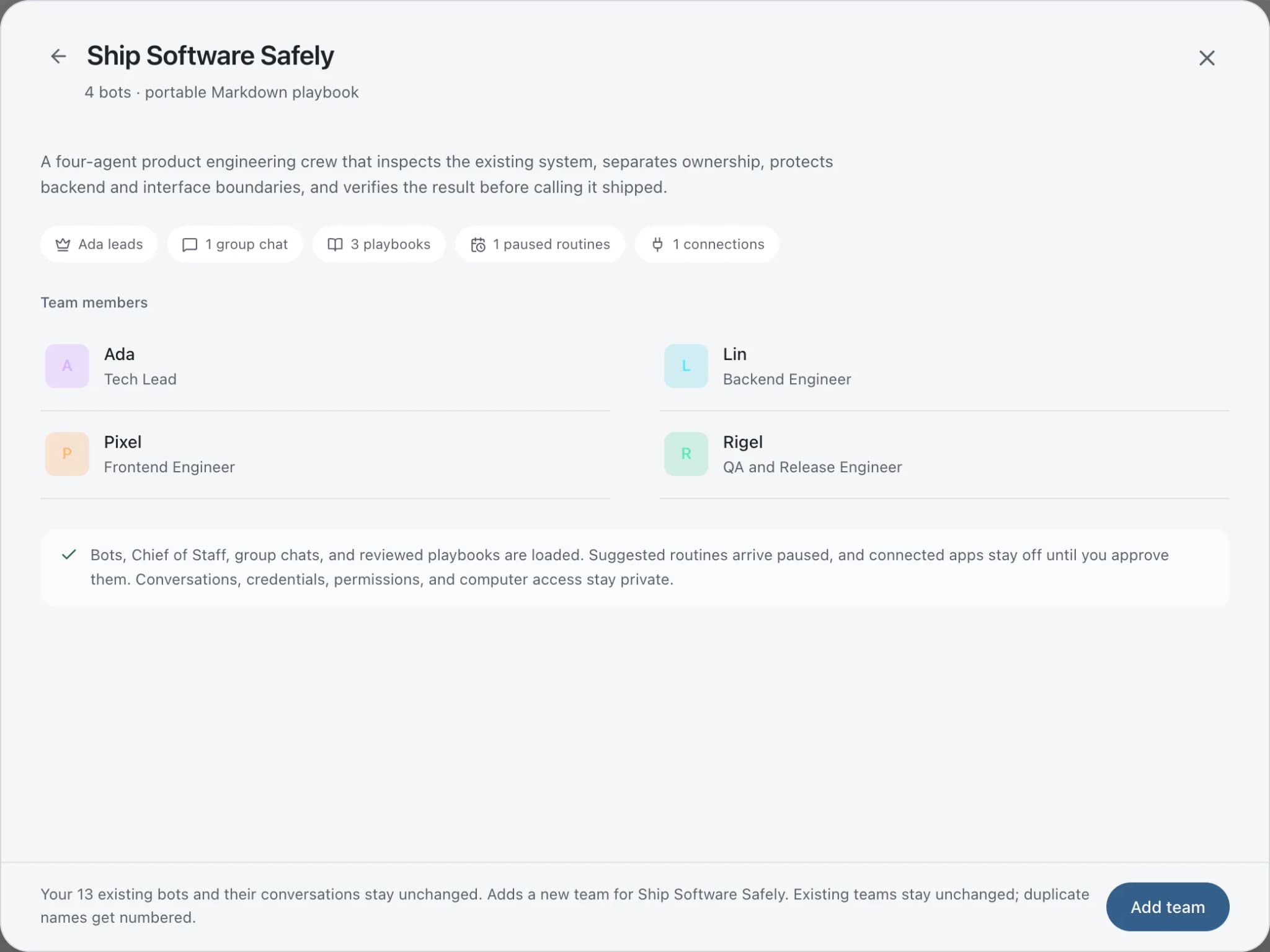
The team library is a collection of ready-made Brainwrite teams at teams.brainwrite.in, each packed into one portable Markdown file with its bots, shared instructions, skills, group chats, playbooks and suggested routines. You preview a team before adding it. Skills arrive switched on, routines arrive paused, and connected apps stay off until you approve them.


I just added a blog writing team from the library. What do you need from me before the first post?
Your Chief of Staff put a team on it
 Atlas· Cipher, Technical SEO Auditor
 Sage· Sage, Content & E-E-A-T Editor
 Dash· Rival, Competitive Analyst
 Penny· Meridian, AI Search & International Specialist
- Skills are on. Both suggested routines are still paused.
- No app access yet: connect WordPress and grant it to the writer bot.
- Send me three past posts so drafts match your voice.
- Then I will propose a first month of topics for Northwind Studio.
DoneGrant app access and turn on the routines you want: waiting for your yes.


First day with a new team: done. One thing waits for you.
- 1Skills are on. Both suggested routines are still paused.
- 2No app access yet: connect WordPress and grant it to the writer bot.
- 3Send me three past posts so drafts match your voice.
4 bots on this jobSee it in the app
Team library in Brainwrite.
Why it matters
On your own, with a chatbot, and with Brainwrite.
| Doing it yourself | A single chatbot | Brainwrite | |
|---|---|---|---|
| Getting started | Write every role and prompt | Start from a blank chat | Add a ready-made team in one click, after a preview |
| Sharing your setup | Write a how-to document | Copy prompts across by hand | One Markdown file, without chat history, keys or passwords |
| Safety on import | Not applicable | Not applicable | Routines arrive paused; apps stay off until you approve |
How it works
How Team library works.
- 01
Pick a team
Open teams.brainwrite.in, or in Brainwrite choose + in the sidebar, then Templates, then Team library.
- 02
Install and preview
Choose Install in Brainwrite. The app opens and shows everything the team will add before anything changes.
- 03
Add the team
Choose Add team. It arrives as a new team in your sidebar. Teams you already have stay as they are, and a duplicate name gets a number.
- 04
Switch on what you want
Connect the apps the team needs and turn on the routines you want. Nothing runs on a schedule until you do.
Good to know
The details.
A team file cannot see your data
Nothing in a team file can see your chats, AI accounts, permissions or computers. It describes bots and how they work together.
Bring your own
In Templates, the Import tab loads a .brainwritebackup.json backup or a team .md file from your Mac. Load from GitHub takes a library team, a public repository or a direct link to a team file.
Share yours as one file
Use Share team… or the Share tab, choose what to include, and select Save file. The recipient adds it from Templates → Import. Chat history, keys and passwords are never included.
A format people can read
Team files are ordinary Markdown with a short structured header, so people and other AI tools can read them. The format is published at teams.brainwrite.in/format.
Browse inside the app
The Explore tab in Templates lists ready-made teams and preset bots. Use Search templates to find one, then preview and add it.
The edges, plainly
- Routines from the team library install paused. You turn on each one you want.
- Imported bots arrive with no connected-app grants, so you assign app access yourself before they can use Gmail, Slack or anything else.
- A shared file is a snapshot. After you change a team, share it again to make a new version.
Use cases
Jobs this feature does for you.




Works with
Apps it's often used with.

GitHub
Triage GitHub issues, review pull requests, read failing workflow logs, and draft release notes. Merges wait for you.

Google Search Console
Pull Search Console queries and pages, inspect URL indexing, check sitemaps, and find pages losing clicks.

Reddit
Search subreddits you approve, read threads and rules, and list qualified leads. Posts and comments wait for you.

Gmail
Bots search, label, and read Gmail threads and draft replies in place. Sending waits for your approval.
FAQ
Questions about Team library
Are there templates for AI agent teams?
Yes. The team library at teams.brainwrite.in has ready-made teams for jobs like SEO audits, blog writing, competitor watch and inbox follow-up. Each team is one Markdown file with bots, skills, group chats, playbooks and suggested routines. Choose Install in Brainwrite to preview it, then Add team.
Is it safe to import someone else's AI agent team?
A team file cannot see your chats, AI accounts, permissions or computers, and you always see a preview first. Imported bots land with no connected-app grants, and routines arrive paused. Read the instructions and skills before you turn anything on, as you would with any software you add.
How do I share my AI agent setup with a colleague?
In Templates, open the Share tab, or use Share team… on the team. Choose what to include and select Save file, then send it. Your colleague adds it from Templates → Import. Chat history, keys and passwords are never included in the file.
Do routines from a library team start running right away?
No. Suggested routines from a library team arrive paused, and connected apps stay off until you approve them. Check each routine's bot and timing, then turn it on when you are ready. Nothing in the team runs on a schedule until you do.
Works well with
Related features.

Chief of Staff
One bot takes your request, hands focused tasks to specialists, and returns a single summary.

Routines
Run a bot's task once, on an interval, or on chosen weekdays, with a receipt for every run.

Connected apps
Gmail, GitHub, Slack, Notion and hundreds more via OAuth, with per-bot tool grants.

Threads and groups
Up to three independent threads per bot, plus group chats where several bots share one brief.





Give your first job to Brainwrite.
Download the app, connect the AI you already pay for, and tell your Chief of Staff what needs doing.
macOS today. Windows and Linux are coming soon.