Use case · Operations
Open your inbox to a sorted list and replies already drafted
To triage email with AI agents, give one Brainwrite bot access to your Gmail or Outlook account and a short set of rules. It reads new mail, sorts it into needs-you, waiting, and ignore, and drafts replies for the messages that need an answer. Nothing is sent until you approve it.


Every weekday at 8, go through my work Gmail. Put anything from clients or about invoices at the top, list newsletters and receipts separately, and draft replies for client questions. Do not send or archive anything.
Your Chief of Staff put a team on it
 Nova· Chief of Staff
 Dash· Inbox triager
 Sage· Reply drafter
- Needs you (4): two client questions, one invoice dispute, one contract to sign
- Draft ready for Priya at Harbor & Pine about the revised timeline, waiting for your approval
- Waiting on others (6): replies you sent where the other side owes the next step
- Ignore (31): newsletters, receipts, and notifications, listed in one block
DoneSaved as a routine: Weekdays at 8:00. It starts paused until you turn it on.


Inbox triage: done. Nothing sent.
- 1Needs you (4): two client questions, one invoice dispute, one contract to sign
- 2Draft ready for Priya at Harbor & Pine about the revised timeline, waiting for your approval
- 3Waiting on others (6): replies you sent where the other side owes the next step
 3 bots on this job
The job
Doing it yourself, and handing it off.
Doing it yourself
You open the inbox and start at the top. Newsletters, receipts, calendar invites, and real questions all look alike in the list, so you read each one to find out which kind it is. The few messages that need a thoughtful reply get pushed to later, and later becomes tomorrow. If you run two or three accounts, you repeat the whole routine in each, and the rules you follow live only in your head.
What the team does
- Read new mail in the accounts and labels you grant
- Sort each message into needs-you, waiting, or ignore with a one-line reason
- Draft replies that reuse the names, dates, and commitments in the thread
- Point out messages that mention a deadline or a meeting time
What waits for you
- Which replies get sent, edited, or dropped
- Any archive, delete, or label change the bot proposes
- The rules for who and what counts as urgent
See it in the app
What it looks like in Brainwrite.
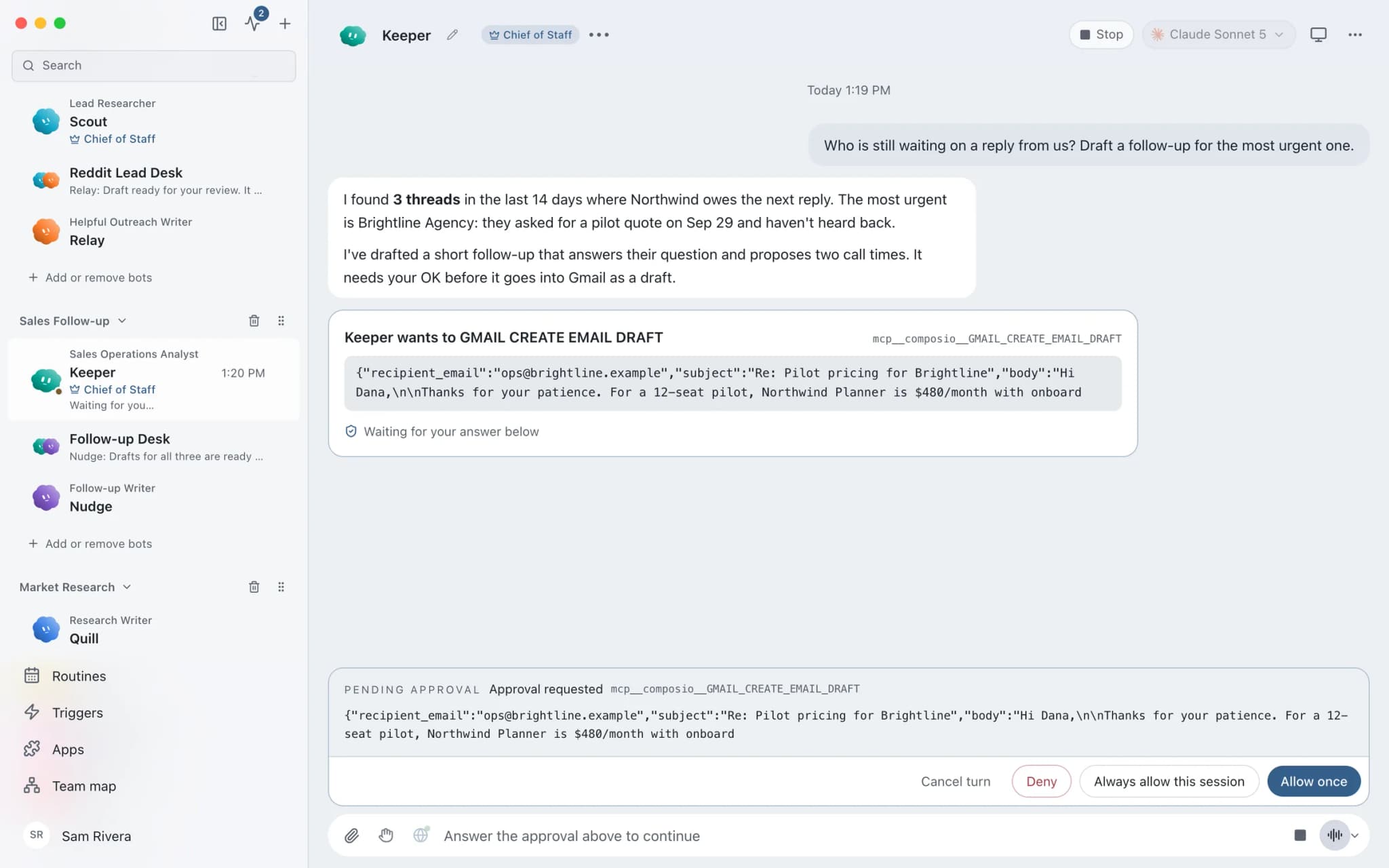
A real screenshot from a demo workspace.
The team
Who's on it.
Your Chief of Staff picks the specialists the job needs. Each has its own role, instructions, model, and app access.
- NovaIllustrated example
Chief of Staff
Takes your request, hands the inbox work to the triage bot, and gives you one short summary of what needs you.
 DashIllustrated example
Inbox triager
Reads new mail in the accounts you grant, applies your sorting rules, and lists each message with a one-line reason.
 SageIllustrated example
Reply drafter
Writes replies for the needs-you pile from the thread's own context and your saved tone notes. Drafts only.
How it runs
A run, step by step.
- 01
Connect the mailbox
Connect Gmail or Outlook in Connected apps through your browser. Label each account, such as work or personal, and grant the triage bot only the mail tools it needs.
- 02
Write your rules once
Tell the bot who matters, what counts as urgent, and what to ignore. It keeps these in plain-text memory you can read and edit.
- 03
Run it on a schedule
Set a routine for the times you check mail. Each run starts fresh and posts its sorted list to one results thread.
- 04
Review and approve
Read the list and the drafts, then approve, edit, or discard each one. A send shows up as an approval card you answer.
What you'll connect
Apps this job uses.

Gmail
Bots search, label, and read Gmail threads and draft replies in place. Sending waits for your approval.

Outlook
Bots search Outlook mail, draft replies, file messages, and find meeting times. Sends wait for your approval.

Google Calendar
Bots read your Google Calendar, find free slots, and create or move events. Invites wait for your approval.
FAQ
Questions about Inbox triage
Can an AI agent send emails on my behalf?
It can draft them, and by default sending waits for you. In Ask mode, a send appears as an approval card in the conversation showing the action and its scope. Denying it hands control back to the bot so it can choose another path. Keep mail threads in Ask if you want to review every message before it leaves.
Does it work with more than one email account?
Yes. Connected apps support several labelled accounts for the same service, such as work and personal Gmail. When more than one account could perform an action, Brainwrite requires the bot to pick one explicitly instead of quietly using the first. You can also grant a bot an exact list of mail tools rather than all of them.
Where are my emails stored?
Brainwrite keeps chats, memory, and files on your Mac. Mail access runs through Composio connected apps: you sign in with OAuth in your browser, and the tokens stay with Composio rather than in prompts. Message text the bot reads is sent to the AI provider you picked for that bot, so choose one you trust with your mail.
Does my Mac need to stay on for scheduled triage?
For local routines, yes. Brainwrite has to be running when a local routine becomes due. Brainwrite Cloud runs your bots and routines on your own always-on cloud computer, so triage can happen while your Mac is asleep or switched off.
Built on
Features this job relies on.
Connected apps
Gmail, GitHub, Slack, Notion and hundreds more via OAuth, with per-bot tool grants.
Routines
Run a bot's task once, on an interval, or on chosen weekdays, with a receipt for every run.
Approvals
Risky actions become cards you approve or deny in the conversation. Ask or Full Access per thread.
Memory
Plain-text memory per bot that you can read, fix and delete. No hidden profile.








Give your first job to Brainwrite.
Download the app, connect the AI you already pay for, and tell your Chief of Staff what needs doing.
macOS today. Windows and Linux are coming soon.