Integration · Email and newsletters
Gmail AI agents that triage your inbox and draft replies
Brainwrite connects Gmail to your AI agents so they can search your mail, read whole threads, apply labels, and write draft replies inside the right conversation. You sign in with Google in your browser, choose which bots get which Gmail tools, and any send comes to you as an approval card unless you've allowed it.
 Brainwrite · Gmail
Go through my Gmail from the last 24 hours. Label anything that needs a reply from me as Needs reply, draft responses for the three most urgent threads, and list what you drafted. Don't send anything.


You connect Gmail once. Your Chief of Staff puts a bot on it.
- Search and fetch emails using Gmail search filters
- Read a full conversation by its thread ID
- Create a draft, or update one you already startedWaits for you
- Reply to a thread or send a new email (approval card unless allowed)Waits for you
- Add or remove labels on messages and threadsWaits for you
In Gmail
What your bots can do in Gmail.
- Search and fetch emails using Gmail search filters
- Read a full conversation by its thread ID
- Create a draft, or update one you already started
- Reply to a thread or send a new email (approval card unless allowed)
- Add or remove labels on messages and threads
- Create labels for your triage buckets
- Download an attachment from a message
- Forward a message to a teammate
Chief of Staff
- Morning triage
- Follow-up drafts
- Sales mailbox sweep
Changes in Gmail wait for your approval in Ask mode
Jobs
Jobs your team does with Gmail.
Morning triage
Sort overnight mail into labels such as Needs reply, FYI, and Receipts, then list the handful of threads that need you today.
Follow-up drafts
Find threads where you owe the next message and leave a draft reply in each one for you to edit and send.
Sales mailbox sweep
The Inbox Follow-up team reviews an approved sales mailbox, checks the deal in HubSpot, and prepares follow-up drafts.
Attachment collection
Pull invoices, contracts, or reports out of matching emails into the bot's working folder.
Set up
How to connect Gmail.
- 01
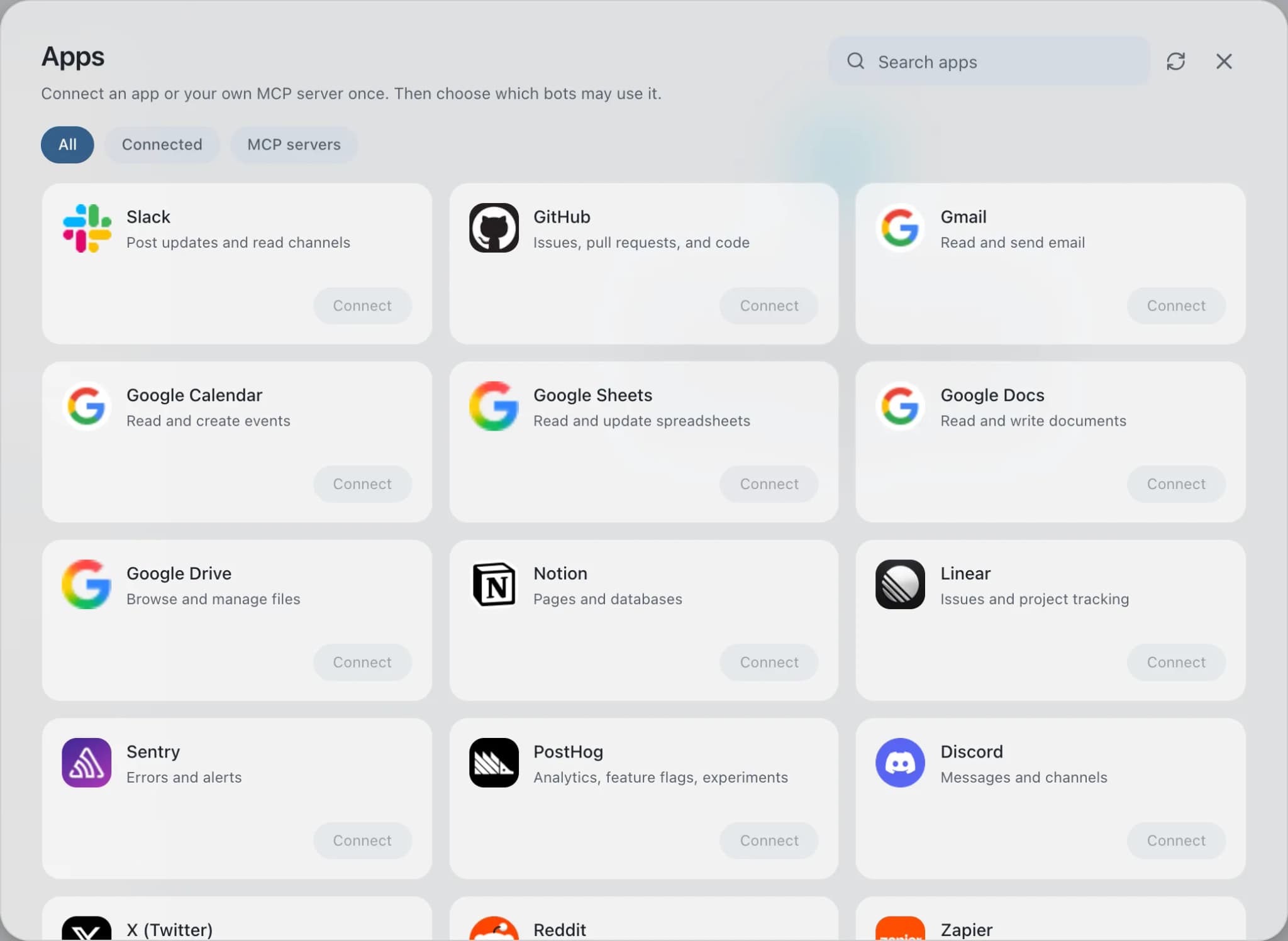
Open Connected apps
In Brainwrite, choose Connected apps in the sidebar. The official app sets up the connection service for you; there's no key to paste.
- 02
Search for Gmail
Find Gmail and choose Connect. You can add more than one account later and label each, such as work or a client.
- 03
Sign in in your browser
Finish Gmail's own sign-in in your normal browser. The access token stays with the connection service and never enters a bot's prompt.
- 04
Choose which bots get it
In each bot's settings, give it all tools, an exact list, or none. Imported bots start with none, so nothing reaches your account by surprise.
Put it to work
Use cases with Gmail.
Inbox triage
A bot sorts new email into what needs you, what can wait, and what to ignore, then drafts replies you approve.
Operations
Sales follow-ups
Keeper finds threads where you owe the next step; Nudge drafts a follow-up from the real conversation. You send.
Sales
Morning brief
Your Chief of Staff reads calendar, mail, and tasks on a schedule and posts one prioritised brief each morning.
Operations
Ready-made teams that use Gmail: Recover Unanswered Sales Emails.
FAQ
Brainwrite and Gmail: questions
How do I connect Gmail to Brainwrite?
Open Connected apps in the sidebar, search for Gmail, and select Connect. Give the account a label such as work or personal, then finish Google's sign-in in the browser window that opens. Return to Brainwrite and ask a bot to use Gmail. The OAuth token stays with Composio and is never written into a bot's prompt.
Can I stop a bot from sending email?
Yes. In a bot's settings under Connected apps, give it all Gmail tools, an exact list, or none. A triage bot can have search, read, label, and draft tools with no send tool at all. A tool a bot isn't granted is never offered to the model, and every allow or deny is written to the decision log.
Can I connect a work and a personal Gmail account?
Yes. Each account gets its own label, and you can connect up to five Gmail accounts. When more than one account could run a tool, the bot has to choose one explicitly, so a new connection never silently replaces an old one. Grants cover the tool on every Gmail account in that installation.
Will a bot send email without asking me?
Not by default. Sends and other outward actions appear as approval cards in the conversation unless you've allowed them, and denying one hands control back to the agent with your reason. For a stricter setup, leave the send and reply tools out of that bot's Gmail grant entirely.
Email and newsletters
More email and newsletters.

Outlook
Bots search Outlook mail, draft replies, file messages, and find meeting times. Sends wait for your approval.

SendGrid
Bots manage SendGrid contacts, templates, and Single Sends, and report on delivery stats. Sends wait for you.

Mailchimp
Bots draft Mailchimp campaigns, manage tags and segments, and read reports. Sends and schedules wait for you.





Give your AI team Gmail.
Download the app, connect the AI you already pay for, and tell your Chief of Staff what needs doing.
macOS today. Windows and Linux are coming soon.