Integration · Docs and knowledge
Excel AI agents for workbooks in OneDrive and SharePoint
Brainwrite connects Excel to your AI agents so they can find workbooks in OneDrive, read ranges and worksheets, update cells, add rows to tables, sort and filter, add worksheets and charts, and export a workbook to PDF. You sign in with Microsoft in your browser and choose which bots get which Excel tools. It works on cloud workbooks, not files only on your disk.
 Brainwrite · Excel
Open the Sales 2026 workbook in OneDrive, add last week's orders from orders.csv in my working folder to the Orders table, sort it by date, and tell me the total by region.


You connect Excel once. Your Chief of Staff puts a bot on it.
- Search and list workbooks in OneDrive
- Read a range or a worksheet's used range
- Update a range of cellsWaits for you
- Add rows to a tableWaits for you
- Sort and filter a table
In Excel
What your bots can do in Excel.
- Search and list workbooks in OneDrive
- Read a range or a worksheet's used range
- Update a range of cells
- Add rows to a table
- Sort and filter a table
- Add a worksheet or a table
- Add a chart
- Export a workbook to PDF
Chief of Staff
- Weekly tracker update
- Workbook review
- Report export
Changes in Excel wait for your approval in Ask mode
Jobs
Jobs your team does with Excel.
Weekly tracker update
Add this week's figures as new rows in a table and refresh the chart that sits on top of it.
Workbook review
Read a model or budget sheet and explain what changed since last month.
Report export
Sort and filter the summary table, then export the workbook to PDF for sharing.
Set up
How to connect Excel.
- 01
Open Connected apps
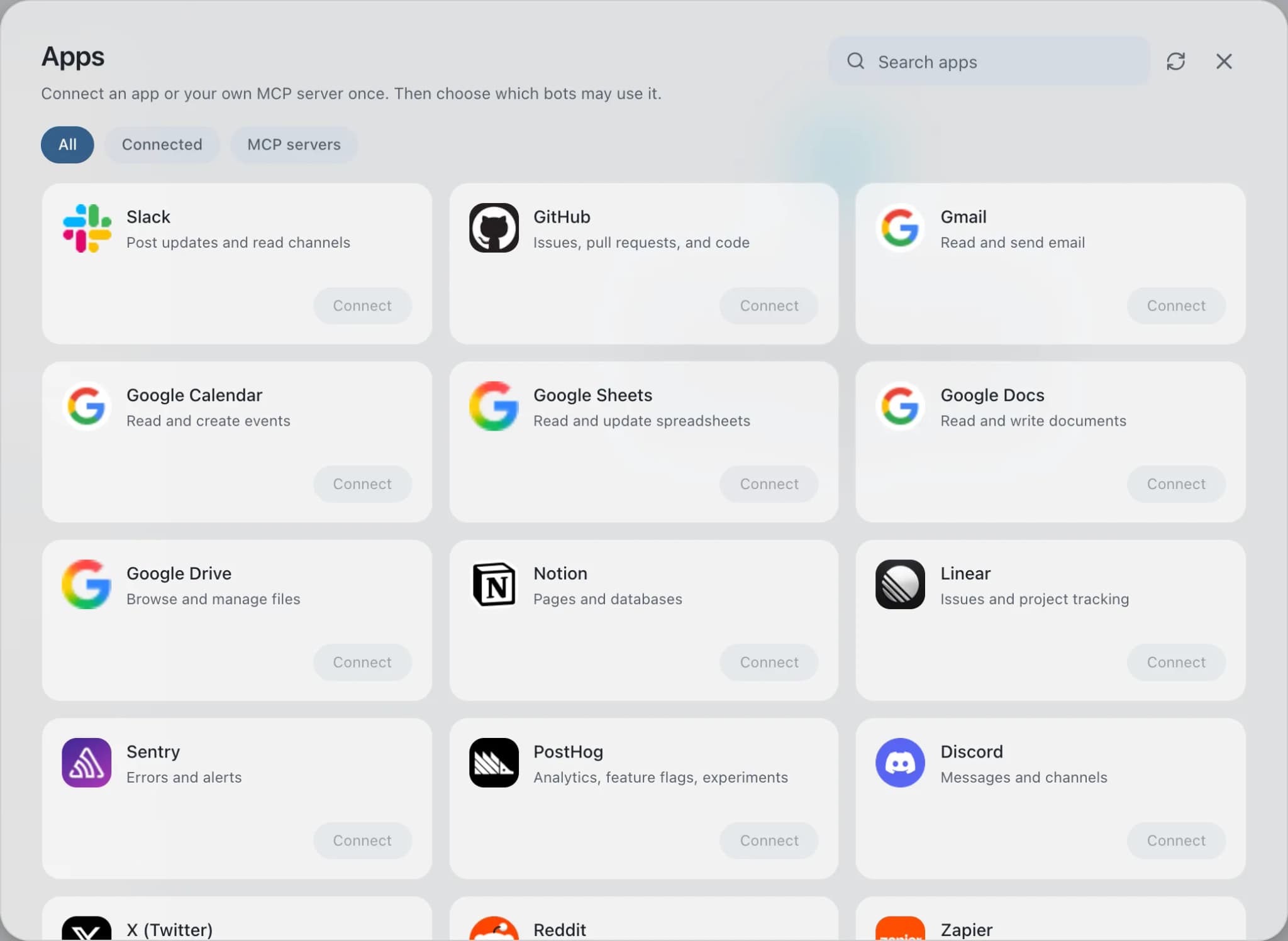
In Brainwrite, choose Connected apps in the sidebar. The official app sets up the connection service for you; there's no key to paste.
- 02
Search for Excel
Find Excel and choose Connect. You can add more than one account later and label each, such as work or a client.
- 03
Sign in in your browser
Finish Excel's own sign-in in your normal browser. The access token stays with the connection service and never enters a bot's prompt.
- 04
Choose which bots get it
In each bot's settings, give it all tools, an exact list, or none. Imported bots start with none, so nothing reaches your account by surprise.
Put it to work
Use cases with Excel.
FAQ
Brainwrite and Excel: questions
How do I connect Excel to Brainwrite?
Open Connected apps, search for Excel, and select Connect. Label the account, then complete Microsoft's sign-in in the browser window that opens. Back in Brainwrite, bots with an Excel grant can work with your workbooks. The OAuth token stays with Composio and is never placed in prompts.
Does it work with Excel files on my Mac?
The Excel connection works on workbooks stored in OneDrive or SharePoint. For a file that only lives on your disk, put it in the bot's working folder, where the bot can work with it as a local file, or upload it to OneDrive first.
How do I limit what a bot can do in Excel?
In the bot's settings under Connected apps, choose all Excel tools, an exact list, or none. A reporting bot can read ranges and list tables only. Delete worksheet, clear range, and permission tools can stay out of a grant, so the model is never offered them.
Docs and knowledge
More docs and knowledge.

Google Sheets
Bots read and write Google Sheets, append and upsert rows, and add charts to trackers and reports.

Airtable
Bots read Airtable schemas, filter and update records, add fields, comment, and upload attachments.

Dropbox
Bots search, read, upload, and move Dropbox files, and create shared links once you approve.





Give your AI team Excel.
Download the app, connect the AI you already pay for, and tell your Chief of Staff what needs doing.
macOS today. Windows and Linux are coming soon.