Computers and browsers
Watch your bot browse, and step in when it needs you
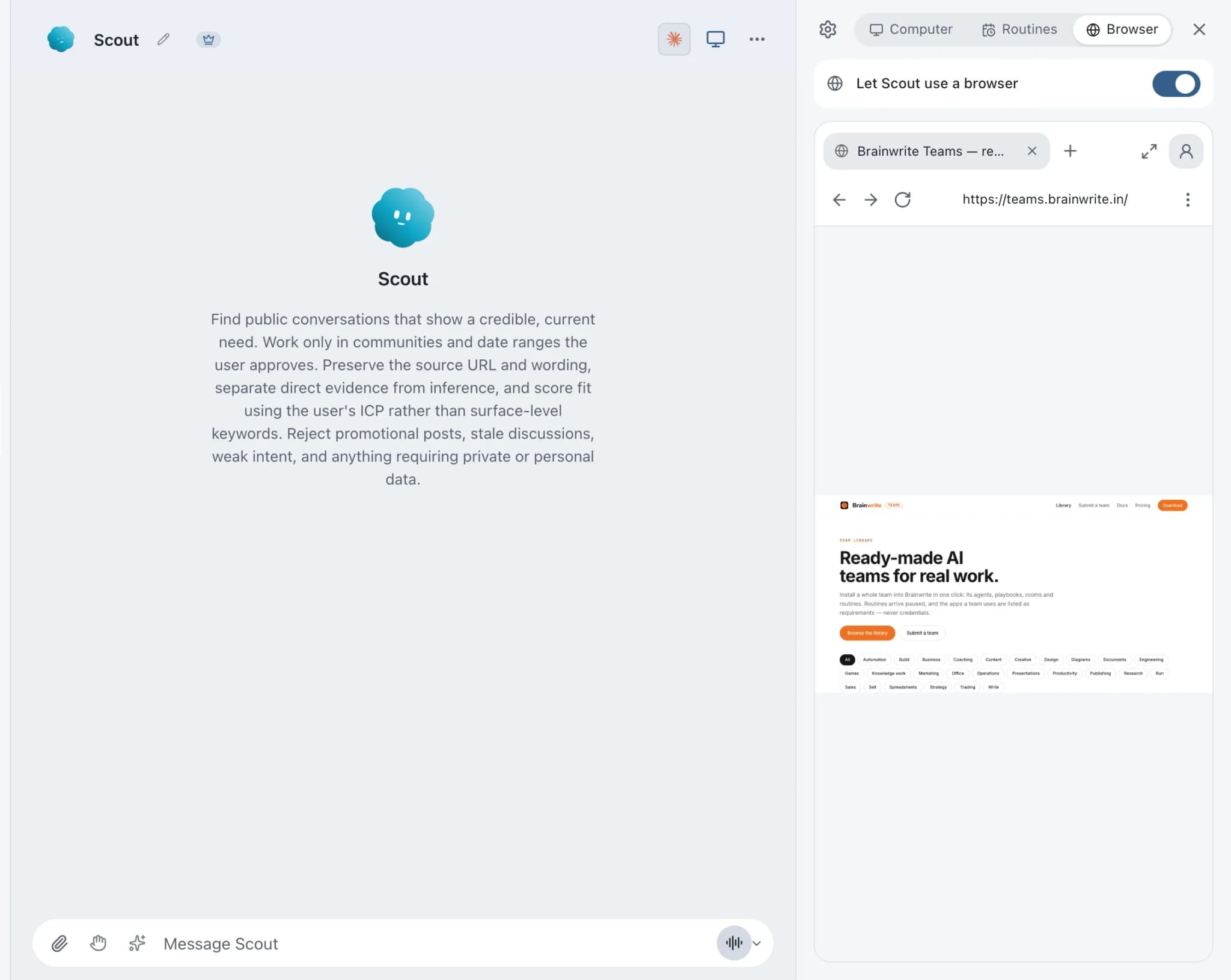
The built-in browser in Brainwrite is a browser tab your bots use for web work, which you can watch while they browse and take over at any moment. It is on unless you turn it off, and each bot has its own browser switch. For steps that need you, such as MFA, a CAPTCHA or payment details, you take control and then hand it back.


Visit the pricing pages for Contoso, Fabrikam and Tailspin and put their plans in a table.
Your Chief of Staff put a team on it
 Nova· Chief of Staff
 Atlas· Desk researcher
 Sage· Customer voice researcher
- Contoso: 3 plans, monthly and yearly. Added to the table.
- Tailspin: 2 plans plus a custom tier. Added to the table.
- Fabrikam shows prices only after sign-in. Paused there.
DoneTake control to sign in to Fabrikam, then hand it back: waiting for your yes.


Compare competitor pricing: done. One thing waits for you.
- 1Contoso: 3 plans, monthly and yearly. Added to the table.
- 2Tailspin: 2 plans plus a custom tier. Added to the table.
- 3Fabrikam shows prices only after sign-in. Paused there.
 3 bots on this job
See it in the app
Built-in browser in Brainwrite.
How it works
How Built-in browser works.
- 01
Leave it on, or choose per bot
The browser is on for the installation by default. Each bot also has its own browser switch.
- 02
Give the task
Ask the bot to research a topic, check a page or fill something in on the web.
- 03
Watch it work
Follow the tab as the bot navigates, so you see what it sees.
- 04
Take control when it needs you
For a missing password, MFA, a CAPTCHA or payment details, choose Take control, finish the step, then return control and ask the bot to continue.
- 05
Turn it off if you want
To disable it for this installation, open Settings → Computers → Built-in browser (in Advanced mode, Settings → Local VM).
Good to know
The details.
Sign-ins you authorise
Bots may complete a sign-in you explicitly authorise for a particular site and account, using an existing session, autofill or credentials you designate. They check the destination and account first.
Web pages cannot give orders
Instructions written on a webpage do not authorise a bot to use your credentials.
Keep passwords out of chat
Do not paste passwords or one-time codes into the conversation. Take control and type them yourself.
Codex uses Brainwrite's browser
Codex bots use the browser and computer selected in Brainwrite. Codex's own desktop-only browser features are switched off for those bots, without uninstalling anything.
Evidence, not assumptions
For Codex bots, Brainwrite snapshots the page after navigation. A sign-in page or redirect shows where the bot landed, not that the task finished, and uncertain actions are not replayed automatically.
The edges, plainly
- There is no website password vault. Bots use an existing session, autofill or credentials you designate.
- MFA, CAPTCHA, payment details and other steps that need you require you to take control.
- One browser session cannot have two agents changing it at once. Brainwrite reports the conflict.
Use cases
Jobs this feature does for you.





Works with
Apps it's often used with.

WordPress.com
Read your WordPress.com posts and create and update drafts. Publishing stays with you in the editor.

Webflow
Add Webflow CMS items, fix page titles and meta descriptions, read form submissions, and publish when you approve.

Google Analytics
Run GA4 reports, compare periods, check funnels and realtime traffic, and get changes explained in plain English.
FAQ
Questions about Built-in browser
Can an AI agent browse websites for me?
Yes. Brainwrite bots can use a built-in browser tab to research, check pages and fill in forms. You can watch the tab while the bot works and take over at any moment. The browser is on by default, and each bot has its own switch to turn it off.
Can an AI agent log in to websites?
It can complete a sign-in you explicitly authorise for a particular site and account, using an existing session, autofill or credentials you designate. It checks the destination and account first. For MFA, a CAPTCHA or anything needing you, use Take control, finish the step, and hand control back.
Can I take over the browser from the AI agent?
Yes. Choose Take control to use the browser yourself, for example to enter a one-time code or solve a CAPTCHA. When you are done, return control and ask the bot to continue. Do not paste passwords or codes into the chat instead.
How do I turn off the AI browser in Brainwrite?
For one bot, use that bot's browser switch. For the whole installation, open Settings → Computers → Built-in browser, or Settings → Local VM if you are in Advanced mode. The browser is on unless you turn it off.
Works well with
Related features.

Computer use
Let a chosen bot use your Mac's apps, or an isolated desktop, with approvals for risky actions.

Local VM
A containerized Linux desktop per bot on your Mac, via Docker or Podman. Your real desktop stays clean.

Approvals
Risky actions become cards you approve or deny in the conversation. Ask or Full Access per thread.

Secrets
Bots use API tokens by name. The value goes only to one https site and never reaches the chat.





Give your first job to Brainwrite.
Download the app, connect the AI you already pay for, and tell your Chief of Staff what needs doing.
macOS today. Windows and Linux are coming soon.