Integration · Chat and messaging
Microsoft Teams AI agents for channels, chats, and meetings
Brainwrite connects Microsoft Teams to your AI agents so they can search Teams messages and files, read channel messages and replies, list your chats, send messages to a chat or channel, and create online meetings. You sign in with Microsoft in your browser, choose which bots get which Teams tools, and messages come to you for approval unless you've allowed them.
 Brainwrite · Microsoft Teams
Search Microsoft Teams for anything about the Q4 budget from the last week, summarise where the discussion landed in each channel, and draft a reply in the Finance channel thread asking for the final numbers.


You connect Microsoft Teams once. Your Chief of Staff puts a bot on it.
- Search Teams messages and files
- List channel messages and their replies
- List your chats and read chat messages
- Send a channel message or reply in a thread (approval card unless allowed)Waits for you
- Send a message to a Teams chatWaits for you
In Microsoft Teams
What your bots can do in Microsoft Teams.
- Search Teams messages and files
- List channel messages and their replies
- List your chats and read chat messages
- Send a channel message or reply in a thread (approval card unless allowed)
- Send a message to a Teams chat
- Create an online meeting
- List teams, channels, and members
Chief of Staff
- Channel catch-up
- Topic search
- Meeting setup
Changes in Microsoft Teams wait for your approval in Ask mode
Jobs
Jobs your team does with Microsoft Teams.
Channel catch-up
Summarise what happened in your busiest channels since yesterday and flag questions waiting on you.
Topic search
Find where a subject was discussed across teams and chats and report where each conversation landed.
Meeting setup
Create a Teams online meeting and share the link in the chat or email thread that asked for it.
Set up
How to connect Microsoft Teams.
- 01
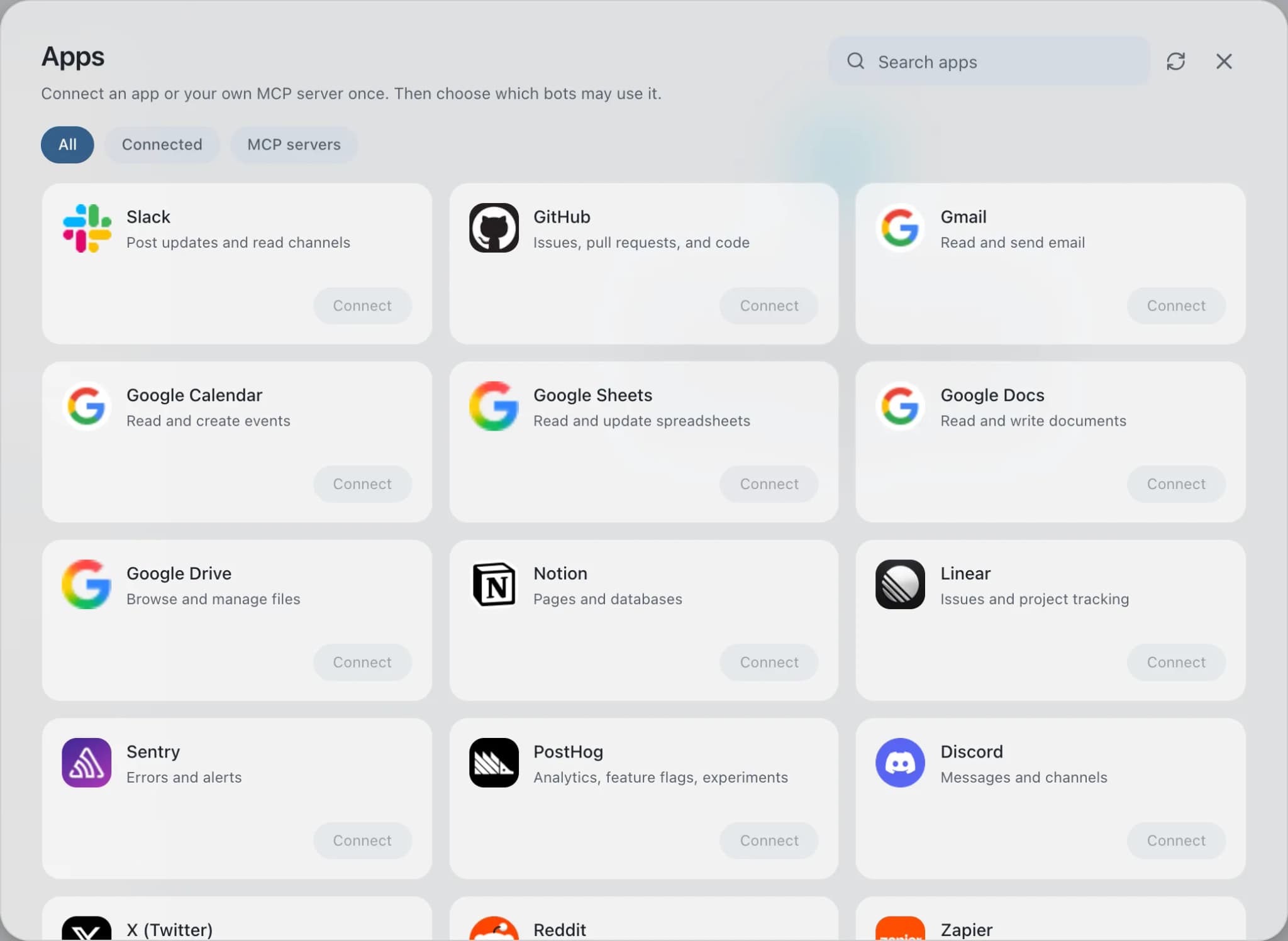
Open Connected apps
In Brainwrite, choose Connected apps in the sidebar. The official app sets up the connection service for you; there's no key to paste.
- 02
Search for Microsoft Teams
Find Microsoft Teams and choose Connect. You can add more than one account later and label each, such as work or a client.
- 03
Sign in in your browser
Finish Microsoft Teams's own sign-in in your normal browser. The access token stays with the connection service and never enters a bot's prompt.
- 04
Choose which bots get it
In each bot's settings, give it all tools, an exact list, or none. Imported bots start with none, so nothing reaches your account by surprise.
Put it to work
Use cases with Microsoft Teams.
Morning brief
Your Chief of Staff reads calendar, mail, and tasks on a schedule and posts one prioritised brief each morning.
Operations
Weekly report
Each Friday the Chief of Staff gathers shipped work, open issues, and pipeline changes into one report you approve.
Operations
Meeting prep
Your Chief of Staff reads the calendar, past threads, and CRM notes and writes a short brief for each meeting.
Operations
FAQ
Brainwrite and Microsoft Teams: questions
How do I connect Microsoft Teams to Brainwrite?
Open Connected apps, search for Microsoft Teams, and select Connect. Give the account a label, then complete Microsoft's sign-in in the browser window that opens. Back in Brainwrite, bots with a Teams grant can read and search. The OAuth token stays with Composio and is not placed in any prompt.
How do I limit what a bot can do in Teams?
In the bot's settings under Connected apps, choose all Teams tools, an exact list, or none. A digest bot needs only search and list-message tools. Team management tools in the toolkit, such as creating, archiving, or deleting teams and channels, are easy to leave out of every grant.
Will a bot post in a channel on its own?
Not by default. Sending a channel message, replying in a thread, or messaging a chat comes to you as an approval card unless you've allowed it. You can review the text, approve it, or deny it and tell the bot what to change.
Chat and messaging
More chat and messaging.

Slack
Bots search Slack, summarise channels and threads, and post or schedule updates once you approve.

Webex
Bots read Webex spaces, summarise message history, and post updates or set up rooms once you approve.

Discord
Bots read Discord channels, draft answers in threads, pin posts, and schedule events through a server bot.

Telegram
Bots send messages, files, and polls through your Telegram bot and read the chats it's part of.





Give your AI team Microsoft Teams.
Download the app, connect the AI you already pay for, and tell your Chief of Staff what needs doing.
macOS today. Windows and Linux are coming soon.