Integration · Docs and knowledge
Google Drive AI agents that find, file, and share your files
Brainwrite connects Google Drive to your AI agents so they can find files and folders, download or export them, upload new files, create folders and move files, comment, and manage sharing. You sign in with Google in your browser, choose which bots get which Drive tools, and sharing with other people comes to you as an approval card unless you've allowed it.
 Brainwrite · Google Drive
Find the latest version of the Acme statement of work in Google Drive, download it, and compare it with the proposal in my working folder. List any differences in scope, price, or dates.

You connect Google Drive once. Your Chief of Staff puts a bot on it.
- Find files and folders
- Download a file, or export a Google Workspace file
- Upload a file, or create one from textWaits for you
- Create a folder and move files into itWaits for you
- Share a file by adding a permission (approval card unless allowed)Waits for you
In Google Drive
What your bots can do in Google Drive.
- Find files and folders
- Download a file, or export a Google Workspace file
- Upload a file, or create one from text
- Create a folder and move files into it
- Share a file by adding a permission (approval card unless allowed)
- Comment on a file and reply to comments
- List a file's revisions
- Move a file to trash, or restore it
Chief of Staff
- Find the file
- Folder tidy-up
- Deliverables
Changes in Google Drive wait for your approval in Ask mode
Jobs
Jobs your team does with Google Drive.
Find the file
Track down the latest contract, deck, or export by name or folder and pull it into the bot's working folder.
Folder tidy-up
Create a clean folder structure for a client or project and move loose files into it.
Deliverables
Upload a finished report and share it with the client after you approve.
Set up
How to connect Google Drive.
- 01
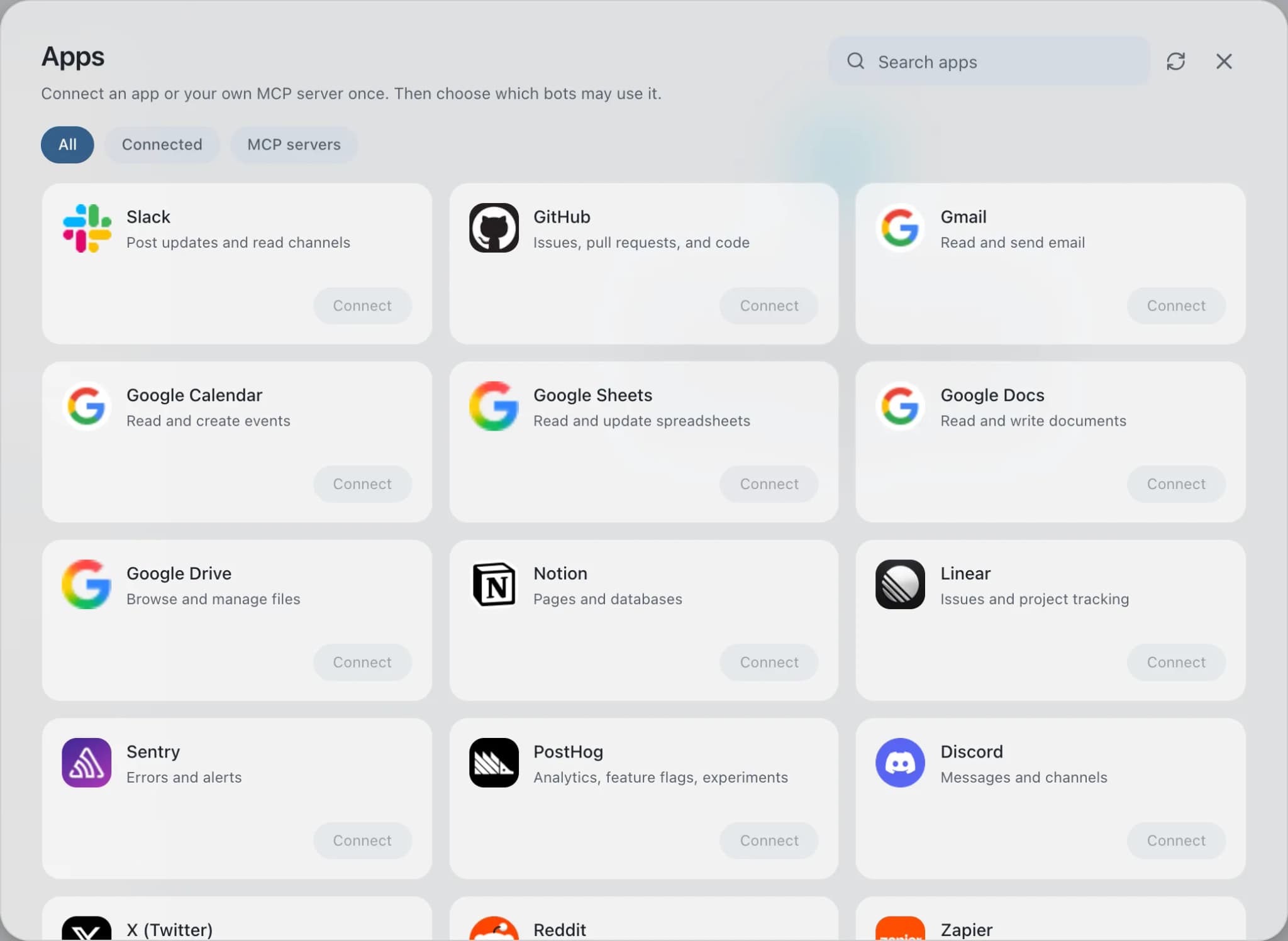
Open Connected apps
In Brainwrite, choose Connected apps in the sidebar. The official app sets up the connection service for you; there's no key to paste.
- 02
Search for Google Drive
Find Google Drive and choose Connect. You can add more than one account later and label each, such as work or a client.
- 03
Sign in in your browser
Finish Google Drive's own sign-in in your normal browser. The access token stays with the connection service and never enters a bot's prompt.
- 04
Choose which bots get it
In each bot's settings, give it all tools, an exact list, or none. Imported bots start with none, so nothing reaches your account by surprise.
Put it to work
Use cases with Google Drive.
Weekly report
Each Friday the Chief of Staff gathers shipped work, open issues, and pipeline changes into one report you approve.
Operations
Customer onboarding
A payment webhook starts a task; a bot prepares the welcome email, project, and kickoff invite for your approval.
Operations
Meeting prep
Your Chief of Staff reads the calendar, past threads, and CRM notes and writes a short brief for each meeting.
Operations
FAQ
Brainwrite and Google Drive: questions
How do I connect Google Drive to Brainwrite?
Open Connected apps, search for Google Drive, and select Connect. Label the account, then finish Google's sign-in in the browser window that opens. Return to Brainwrite and ask a bot to find a file. The OAuth token stays with Composio and is never placed in any prompt.
How do I limit what a bot can do in Google Drive?
In the bot's settings under Connected apps, choose all Drive tools, an exact list, or none. A research bot can find and download files only. Leaving permission, delete, and empty-trash tools out of a grant means the model is never offered them.
Can I keep work and personal Drives separate?
You can connect both as separately labelled accounts, and the bot must choose one explicitly when either could run a tool. Grants apply to tools, not accounts, so to keep a bot away from one Drive entirely, put that account in a separate Brainwrite installation.
Docs and knowledge
More docs and knowledge.

Google Docs
Bots create Google Docs from Markdown, read and search docs, edit sections, and export PDFs.

Google Sheets
Bots read and write Google Sheets, append and upsert rows, and add charts to trackers and reports.

Dropbox
Bots search, read, upload, and move Dropbox files, and create shared links once you approve.
Notion
Bots search Notion, read and write pages, query databases, and add or update rows and comments.





Give your AI team Google Drive.
Download the app, connect the AI you already pay for, and tell your Chief of Staff what needs doing.
macOS today. Windows and Linux are coming soon.