Integration · Docs and knowledge
Dropbox AI agents that find, read, and organise your files
Brainwrite connects Dropbox to your AI agents so they can search files and folders, list and read files, upload new ones, move or copy them, create shared links and file requests, and look at a file's revisions. You authorize Dropbox in your browser, choose which bots get which tools, and new shared links come to you for approval unless you've allowed them.
 Brainwrite · Dropbox
Search Dropbox for every file with Q3 in the name under /Clients/Acme, move them into a new Q3 folder there, and list anything that looks like a duplicate.


You connect Dropbox once. Your Chief of Staff puts a bot on it.
- Search files and folders
- List the files in a folder
- Read a file's contents
- Upload a fileWaits for you
- Move or copy files and foldersWaits for you
In Dropbox
What your bots can do in Dropbox.
- Search files and folders
- List the files in a folder
- Read a file's contents
- Upload a file
- Move or copy files and folders
- Create a shared link (approval card unless allowed)
- Create a file request to collect files from someone
- List a file's revisions
Chief of Staff
- Client file collection
- Folder clean-up
- Document review
Changes in Dropbox wait for your approval in Ask mode
Jobs
Jobs your team does with Dropbox.
Client file collection
Create a file request for the documents you need and check later what has arrived.
Folder clean-up
Move scattered files into a consistent folder structure for each client or project.
Document review
Read a contract or report from Dropbox and summarise the parts you asked about.
Set up
How to connect Dropbox.
- 01
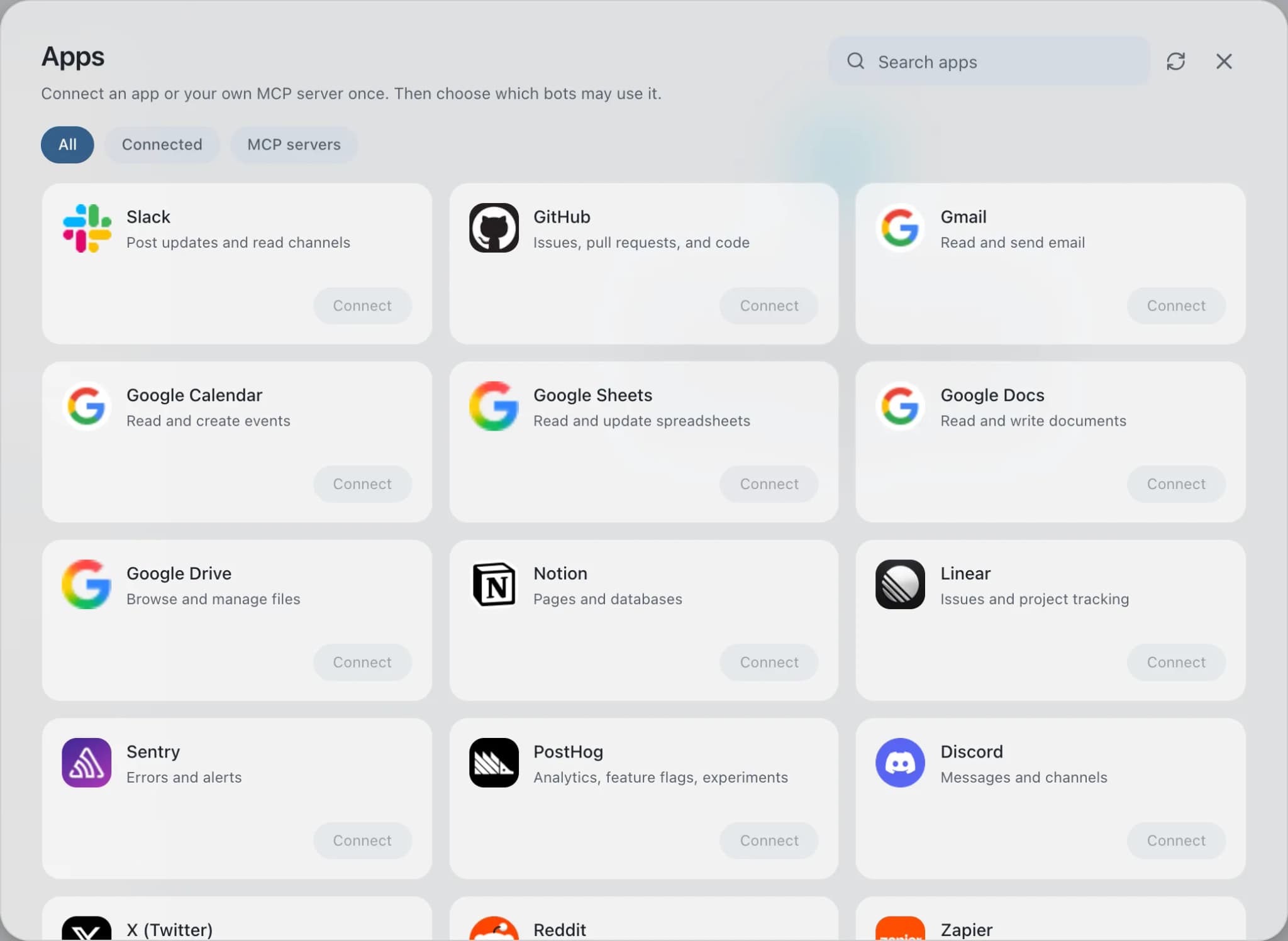
Open Connected apps
In Brainwrite, choose Connected apps in the sidebar. The official app sets up the connection service for you; there's no key to paste.
- 02
Search for Dropbox
Find Dropbox and choose Connect. You can add more than one account later and label each, such as work or a client.
- 03
Sign in in your browser
Finish Dropbox's own sign-in in your normal browser. The access token stays with the connection service and never enters a bot's prompt.
- 04
Choose which bots get it
In each bot's settings, give it all tools, an exact list, or none. Imported bots start with none, so nothing reaches your account by surprise.
Put it to work
Use cases with Dropbox.
FAQ
Brainwrite and Dropbox: questions
How do I connect Dropbox to Brainwrite?
Open Connected apps, search for Dropbox, and select Connect. Label the account, then sign in to Dropbox and approve access in the browser window that opens. Return to Brainwrite and ask a bot to find a file. The OAuth token stays with Composio and is never written into prompts.
How do I limit what a bot can do in Dropbox?
In the bot's settings under Connected apps, choose all Dropbox tools, an exact list, or none. The toolkit includes team admin tools, such as managing members and groups, that a file bot doesn't need. A reading bot can get search, list, and read file only.
Can I connect both a personal and a work Dropbox?
Yes. Connect each as its own labelled account, up to five per app. When both could run a tool, the bot must pick one explicitly. Grants cover tools across every connected Dropbox, so use a separate installation if a bot must never reach one account.
Docs and knowledge
More docs and knowledge.

Google Drive
Bots find, download, upload, and organise Google Drive files, and share them once you approve.

Excel
Bots read and update Excel workbooks in OneDrive and SharePoint, add table rows, and build charts.
Notion
Bots search Notion, read and write pages, query databases, and add or update rows and comments.





Give your AI team Dropbox.
Download the app, connect the AI you already pay for, and tell your Chief of Staff what needs doing.
macOS today. Windows and Linux are coming soon.