Integration · Email and newsletters
Brevo AI agents for contacts, templates, and campaign review
Brainwrite connects Brevo to your AI agents so they can look up and organise contacts, create contact lists, keep company records current, write and update email templates, and review your email campaigns. You connect Brevo in your browser, then choose for each bot whether it gets all Brevo tools, an exact list, or none.
 Brainwrite · Brevo
In Brevo, list our email campaigns from the last month with their details, then write a new email template for the November newsletter based on the strongest one. Save it as a template and don't touch any campaign.


You connect Brevo once. Your Chief of Staff puts a bot on it.
- Get all contacts, or one contact's details
- Create a contact listWaits for you
- Create, list, and look up companiesWaits for you
- Create or update an email templateWaits for you
- List email campaigns and get a campaign's details
In Brevo
What your bots can do in Brevo.
- Get all contacts, or one contact's details
- Create a contact list
- Create, list, and look up companies
- Create or update an email template
- List email campaigns and get a campaign's details
- Update an existing email campaign
- Create an SMS campaign
- List the senders on your account
Chief of Staff
- Template writing
- List preparation
- Campaign review
Changes in Brevo wait for your approval in Ask mode
Jobs
Jobs your team does with Brevo.
Template writing
Draft the next newsletter or announcement as a Brevo email template, based on what worked in earlier campaigns.
List preparation
Create a contact list for an event or launch and check contact details before anyone hits send.
Campaign review
Pull details for last month's email campaigns and summarise them for your weekly report.
Set up
How to connect Brevo.
- 01
Open Connected apps
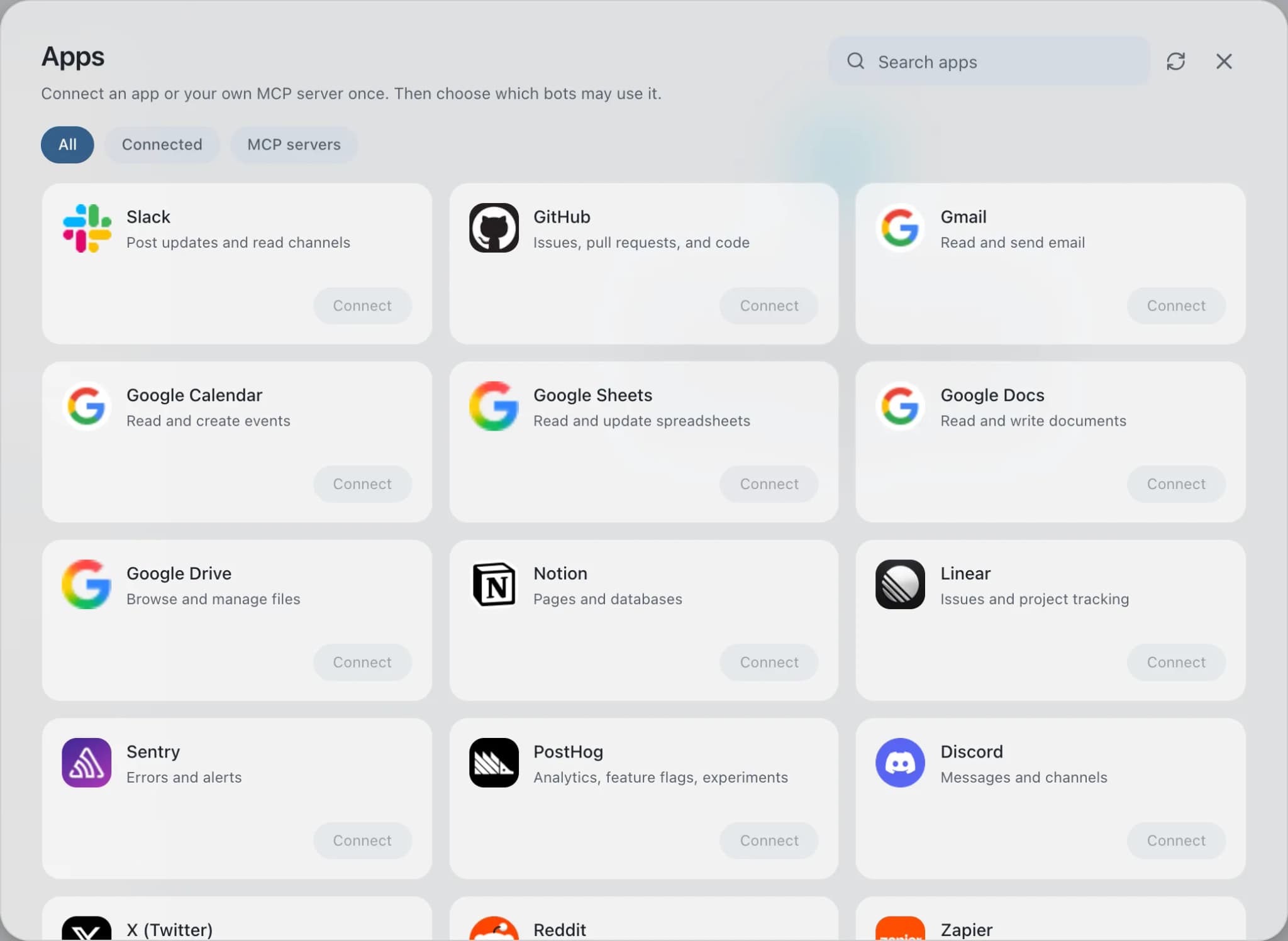
In Brainwrite, choose Connected apps in the sidebar. The official app sets up the connection service for you; there's no key to paste.
- 02
Search for Brevo
Find Brevo and choose Connect. You can add more than one account later and label each, such as work or a client.
- 03
Sign in in your browser
Finish Brevo's own sign-in in your normal browser. The access token stays with the connection service and never enters a bot's prompt.
- 04
Choose which bots get it
In each bot's settings, give it all tools, an exact list, or none. Imported bots start with none, so nothing reaches your account by surprise.
Put it to work
Use cases with Brevo.
FAQ
Brainwrite and Brevo: questions
How do I connect Brevo to Brainwrite?
Open Connected apps, search for Brevo, and select Connect. Give the account a label, then complete the authorization in the browser window that opens. Back in Brainwrite, any bot you grant Brevo tools can use them. Credentials are kept by Composio and are not written into prompts.
Can a bot send a Brevo email campaign?
No. Composio's Brevo toolkit can list, read, and update email campaigns and create SMS campaigns, but it has no tool to send an email campaign, so the final send happens in Brevo. Write actions a bot does take come to you as approval cards unless you've allowed them.
How do I limit what a bot can do in Brevo?
Open the bot's settings, find Brevo under Connected apps, and set all tools, an exact list, or none. A template writer might only get the template tools, while a list builder gets contact and list tools. Delete tools are easy to leave out of any grant.
Email and newsletters
More email and newsletters.

Mailchimp
Bots draft Mailchimp campaigns, manage tags and segments, and read reports. Sends and schedules wait for you.

SendGrid
Bots manage SendGrid contacts, templates, and Single Sends, and report on delivery stats. Sends wait for you.

Klaviyo
Bots draft Klaviyo campaigns, manage lists and segments, and report on campaign and flow results.

Outlook
Bots search Outlook mail, draft replies, file messages, and find meeting times. Sends wait for your approval.





Give your AI team Brevo.
Download the app, connect the AI you already pay for, and tell your Chief of Staff what needs doing.
macOS today. Windows and Linux are coming soon.