Integration · Email and newsletters
Outlook AI agents for your Microsoft inbox and calendar
Brainwrite connects Outlook to your AI agents so they can search your Microsoft mail, draft replies, move messages into folders, and read your calendar to find meeting times. You sign in with Microsoft in your browser, pick which bots get which Outlook tools, and sends come to you as approval cards unless you've allowed them.
 Brainwrite · Outlook
Check my Outlook inbox since Friday. Move newsletters into a Reading folder, draft replies to anything from clients, and find two 30-minute slots next week when I'm free for the Acme call.


You connect Outlook once. Your Chief of Staff puts a bot on it.
- Search Outlook messages and list a folder's mail
- Create a reply or reply-all draft for a messageWaits for you
- Send an email or a saved draft (approval card unless allowed)Waits for you
- Move messages into a mail folderWaits for you
- List calendar events and find meeting times
In Outlook
What your bots can do in Outlook.
- Search Outlook messages and list a folder's mail
- Create a reply or reply-all draft for a message
- Send an email or a saved draft (approval card unless allowed)
- Move messages into a mail folder
- List calendar events and find meeting times
- Create a calendar event or accept an invite
- Create a contact or look one up
- Read tasks from a Microsoft To Do list
Chief of Staff
- Folder triage
- Client reply drafts
- Scheduling from email
Changes in Outlook wait for your approval in Ask mode
Jobs
Jobs your team does with Outlook.
Folder triage
Move newsletters, receipts, and notifications into their folders and leave the inbox with only mail that needs a person.
Client reply drafts
Draft replies to client threads in Outlook so you review the wording and send from your own account.
Scheduling from email
When someone asks to meet, check your calendar for open times and put two or three options into the draft reply.
Set up
How to connect Outlook.
- 01
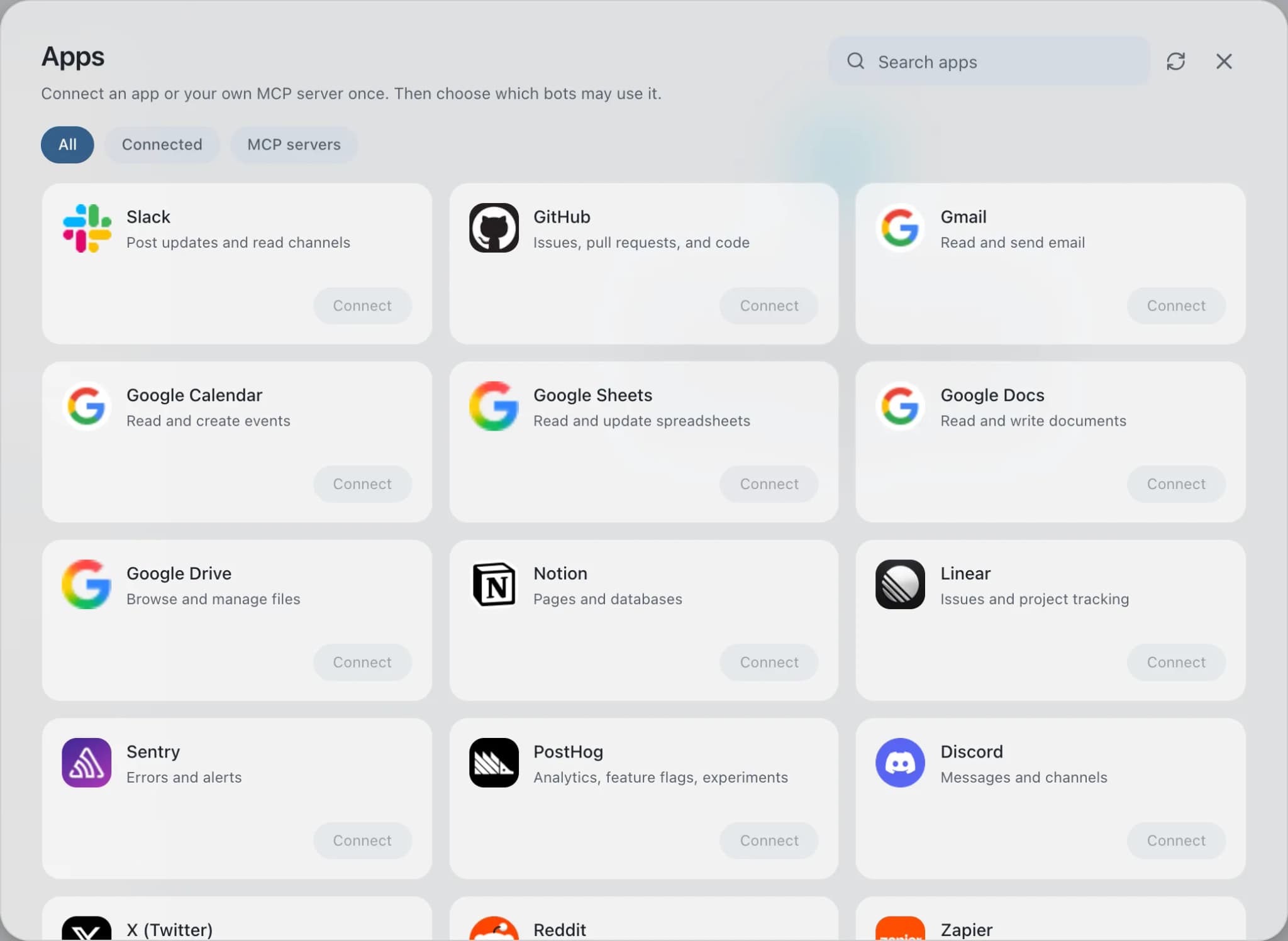
Open Connected apps
In Brainwrite, choose Connected apps in the sidebar. The official app sets up the connection service for you; there's no key to paste.
- 02
Search for Outlook
Find Outlook and choose Connect. You can add more than one account later and label each, such as work or a client.
- 03
Sign in in your browser
Finish Outlook's own sign-in in your normal browser. The access token stays with the connection service and never enters a bot's prompt.
- 04
Choose which bots get it
In each bot's settings, give it all tools, an exact list, or none. Imported bots start with none, so nothing reaches your account by surprise.
Put it to work
Use cases with Outlook.
Inbox triage
A bot sorts new email into what needs you, what can wait, and what to ignore, then drafts replies you approve.
Operations
Meeting prep
Your Chief of Staff reads the calendar, past threads, and CRM notes and writes a short brief for each meeting.
Operations
Morning brief
Your Chief of Staff reads calendar, mail, and tasks on a schedule and posts one prioritised brief each morning.
Operations
FAQ
Brainwrite and Outlook: questions
How do I connect Outlook to Brainwrite?
Open Connected apps, search for Outlook, and select Connect. Enter a label for the account, then complete Microsoft's sign-in in the browser window that opens. When you return to Brainwrite, any bot with an Outlook grant can use it. The OAuth token is held by Composio, not stored in prompts or shown in the app.
Can I let a bot read and draft but not send?
Yes. Open the bot's settings, find Outlook under Connected apps, and choose an exact list of tools: search, read, move, and create-draft, with send left out. You can also give a bot all Outlook tools or none. Tools outside the grant are never offered to the model.
Does the Outlook connection cover my calendar too?
Yes. Composio's Outlook toolkit includes calendar, contacts, and To Do tools alongside mail. That means one connection lets a bot find meeting times or list events. If you want a scheduling bot to stay out of your mail, grant it only the calendar tools.
Email and newsletters
More email and newsletters.

Gmail
Bots search, label, and read Gmail threads and draft replies in place. Sending waits for your approval.

SendGrid
Bots manage SendGrid contacts, templates, and Single Sends, and report on delivery stats. Sends wait for you.

Brevo
Bots organise Brevo contacts and companies, write email templates, and review campaigns.





Give your AI team Outlook.
Download the app, connect the AI you already pay for, and tell your Chief of Staff what needs doing.
macOS today. Windows and Linux are coming soon.