Integration · Docs and knowledge
Airtable AI agents that read and update your bases
Brainwrite connects Airtable to your AI agents so they can list bases and read their schema, list and filter records, create, update, and delete records, add tables and fields, comment on records, and upload attachments. You authorize Airtable in your browser, choose which bases to share, and pick which bots get which Airtable tools.
 Brainwrite · Airtable
In our Airtable Content base, list every record in the Ideas table with status Approved and no writer assigned. Comment on each asking for a volunteer, and summarise the list for me.


You connect Airtable once. Your Chief of Staff puts a bot on it.
- List bases and read a base's schema
- List records in a table
- Create, update, or delete recordsWaits for you
- Create a record from a plain-English descriptionWaits for you
- Create a table or a fieldWaits for you
In Airtable
What your bots can do in Airtable.
- List bases and read a base's schema
- List records in a table
- Create, update, or delete records
- Create a record from a plain-English description
- Create a table or a field
- Comment on a record
- Upload an attachment to a record
Chief of Staff
- Intake to records
- Status updates
- Base reviews
Changes in Airtable wait for your approval in Ask mode
Jobs
Jobs your team does with Airtable.
Intake to records
Turn emails, form replies, or notes into clean records in the right table.
Status updates
Update statuses and owners across a content or project base after a planning call.
Base reviews
Read the schema and records and point out empty fields, duplicates, or stale items.
Set up
How to connect Airtable.
- 01
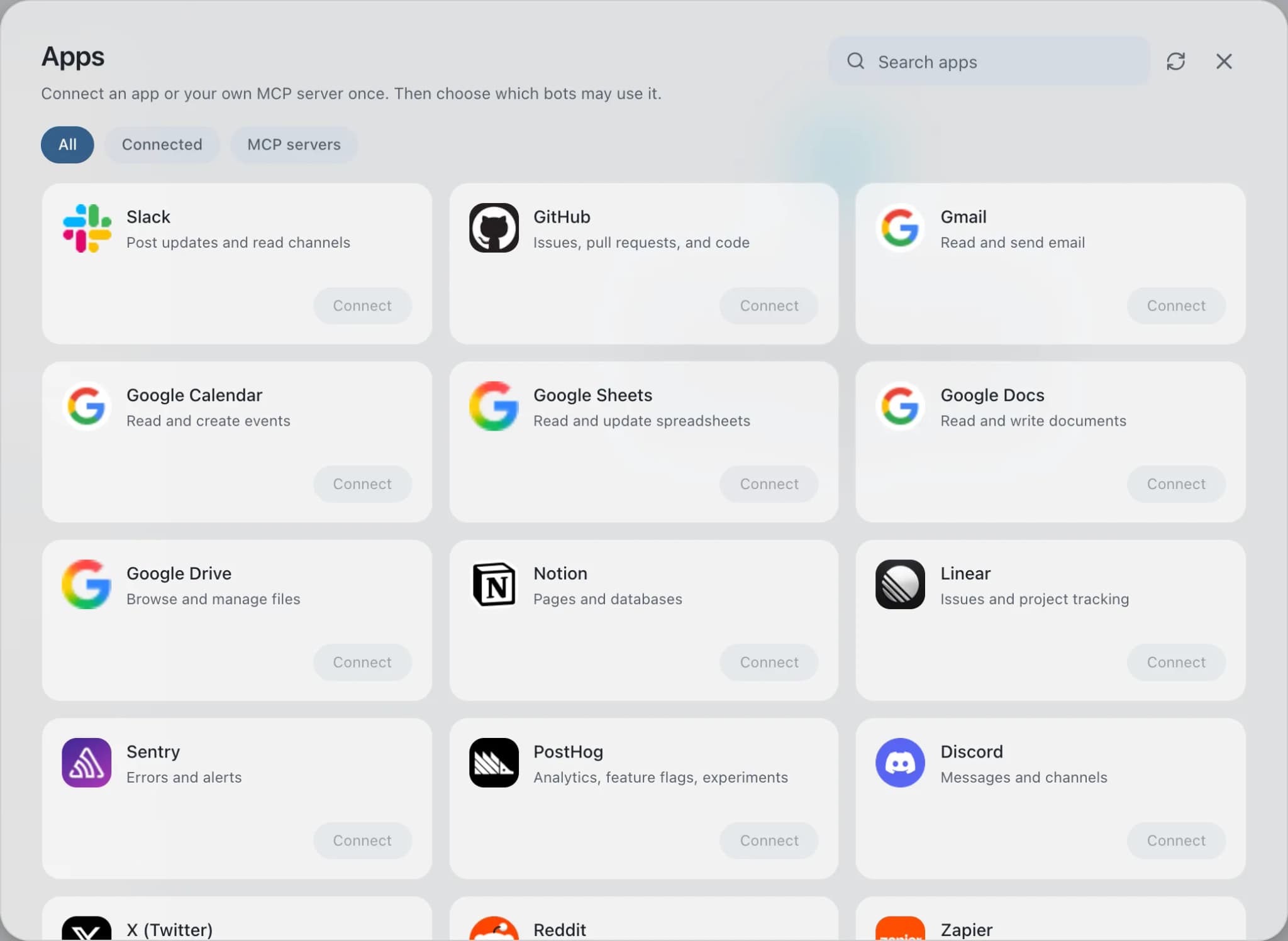
Open Connected apps
In Brainwrite, choose Connected apps in the sidebar. The official app sets up the connection service for you; there's no key to paste.
- 02
Search for Airtable
Find Airtable and choose Connect. You can add more than one account later and label each, such as work or a client.
- 03
Sign in in your browser
Finish Airtable's own sign-in in your normal browser. The access token stays with the connection service and never enters a bot's prompt.
- 04
Choose which bots get it
In each bot's settings, give it all tools, an exact list, or none. Imported bots start with none, so nothing reaches your account by surprise.
Put it to work
Use cases with Airtable.
Blog writing
Wren, Finch, Beacon, Vera, and Iris take a topic from brief to a scored, sourced draft, and localise it if you ask.
Marketing
Weekly report
Each Friday the Chief of Staff gathers shipped work, open issues, and pipeline changes into one report you approve.
Operations
CRM hygiene
A weekly routine finds duplicates, missing fields, and stale deals in your CRM, and proposes fixes you approve.
Sales
FAQ
Brainwrite and Airtable: questions
How do I connect Airtable to Brainwrite?
Open Connected apps, search for Airtable, and select Connect. Label the account, then approve access in the browser window that opens, where Airtable asks which bases to share. Back in Brainwrite, bots with an Airtable grant can work in those bases. The token stays with Composio.
How do I limit what a bot can do in Airtable?
In the bot's settings under Connected apps, choose all Airtable tools, an exact list, or none. A reporting bot can list bases, read schema, and list records only. Delete record tools and schema changes such as create table or update field can stay out of every grant.
Why can't the bot see one of my bases?
Airtable shares only the bases you picked during authorization. To add one, reconnect Airtable from Connected apps and select it, then ask the bot again. A bot can't reach a base Airtable hasn't shared with the connection.
Docs and knowledge
More docs and knowledge.

Google Sheets
Bots read and write Google Sheets, append and upsert rows, and add charts to trackers and reports.

Notion
Bots search Notion, read and write pages, query databases, and add or update rows and comments.

Excel
Bots read and update Excel workbooks in OneDrive and SharePoint, add table rows, and build charts.





Give your AI team Airtable.
Download the app, connect the AI you already pay for, and tell your Chief of Staff what needs doing.
macOS today. Windows and Linux are coming soon.