Integration · Chat and messaging
WhatsApp AI agents for business messages and templates
Brainwrite connects WhatsApp to your AI agents so they can send text, media, template, and interactive messages from your business number, manage message templates and their approval status, and read your business profile and phone numbers. It works with a WhatsApp Business account, not a personal one, and every send comes to you for approval unless you've allowed it.
 Brainwrite · WhatsApp
Draft a WhatsApp message template for appointment reminders with the customer's name, date, and time as variables. Create it in our WhatsApp Business account, then check its approval status and tell me where it stands.


You connect WhatsApp once. Your Chief of Staff puts a bot on it.
- Send a text message to a customer (approval card unless allowed)Waits for you
- Send an approved template messageWaits for you
- Send media, a location, or a contact cardWaits for you
- Send interactive buttons or a listWaits for you
- Create or delete a message templateWaits for you
In WhatsApp
What your bots can do in WhatsApp.
- Send a text message to a customer (approval card unless allowed)
- Send an approved template message
- Send media, a location, or a contact card
- Send interactive buttons or a list
- Create or delete a message template
- Check a template's approval status
- Get your business profile and phone numbers
- Upload media to use in later messages
Chief of Staff
- Reminder templates
- Customer replies
- Onboarding messages
Changes in WhatsApp wait for your approval in Ask mode
Jobs
Jobs your team does with WhatsApp.
Reminder templates
Write appointment or delivery reminder templates with variables and submit them for approval.
Customer replies
Draft answers to customer questions from your help docs and send the ones you approve.
Onboarding messages
Send a welcome message with interactive buttons that point new customers to their next step.
Set up
How to connect WhatsApp.
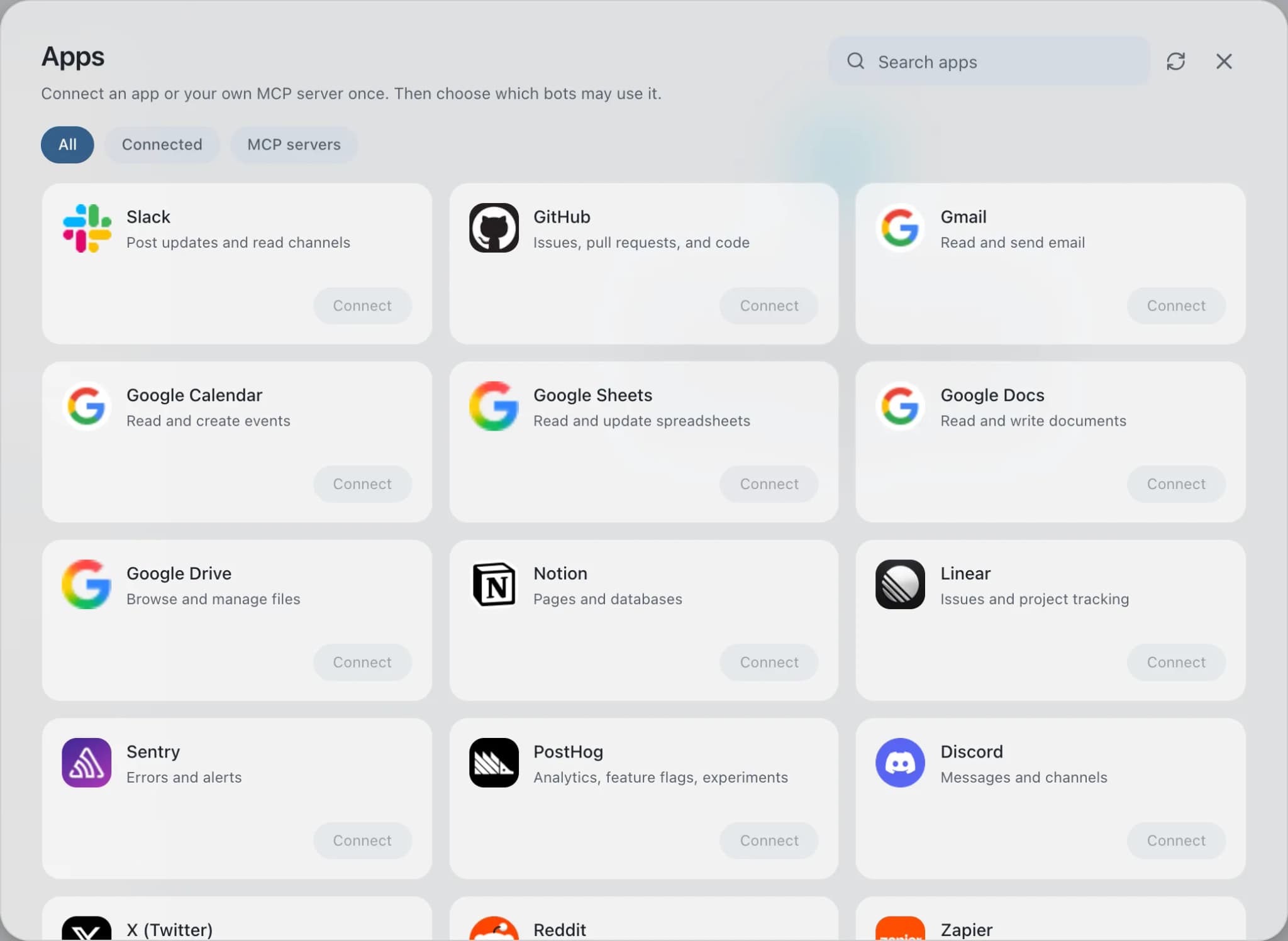
- 01
Open Connected apps
In Brainwrite, choose Connected apps in the sidebar. The official app sets up the connection service for you; there's no key to paste.
- 02
Search for WhatsApp
Find WhatsApp and choose Connect. You can add more than one account later and label each, such as work or a client.
- 03
Sign in in your browser
Finish WhatsApp's own sign-in in your normal browser. The access token stays with the connection service and never enters a bot's prompt.
- 04
Choose which bots get it
In each bot's settings, give it all tools, an exact list, or none. Imported bots start with none, so nothing reaches your account by surprise.
Put it to work
Use cases with WhatsApp.
FAQ
Brainwrite and WhatsApp: questions
How do I connect WhatsApp to Brainwrite?
Open Connected apps, search for WhatsApp, and select Connect. Label the account, then finish authorization in the browser window that opens. Composio's WhatsApp toolkit works with a WhatsApp Business account and its phone numbers, not a personal WhatsApp. Credentials stay with Composio and never enter a prompt.
Can a bot message any customer at any time?
No. WhatsApp's own rules still apply: outside a 24-hour window after the customer last messaged you, businesses generally have to use an approved template. Inside Brainwrite, sends come to you as approval cards unless you've allowed them, so you see each message first.
How do I limit what a bot can do in WhatsApp?
In the bot's settings under Connected apps, choose all WhatsApp tools, an exact list, or none. A template-writing bot can get create template and template status tools without any send tool. Tools outside the grant are never offered to the model.
Chat and messaging
More chat and messaging.

Telegram
Bots send messages, files, and polls through your Telegram bot and read the chats it's part of.

Slack
Bots search Slack, summarise channels and threads, and post or schedule updates once you approve.

Discord
Bots read Discord channels, draft answers in threads, pin posts, and schedule events through a server bot.





Give your AI team WhatsApp.
Download the app, connect the AI you already pay for, and tell your Chief of Staff what needs doing.
macOS today. Windows and Linux are coming soon.