Integration · Calendar and meetings
Google Meet AI agents that turn transcripts into recaps
Brainwrite connects Google Meet to your AI agents so they can create meeting spaces, list past conference records, see who joined, find recordings, and read transcript entries to write a recap. You sign in with Google in your browser and pick which bots get which Meet tools. Transcripts exist only for meetings where Meet's transcription was turned on.
 Brainwrite · Google Meet
Find yesterday's product sync in Google Meet, read the transcript, and write a recap with decisions, open questions, and owners. Save it as a new Google Doc and send me the link here.


You connect Google Meet once. Your Chief of Staff puts a bot on it.
- Create a Google Meet space and share its linkWaits for you
- List conference records for past meetings
- List participants and their sessions
- List recordings for a meeting
- Get a transcript and read its entries
In Google Meet
What your bots can do in Google Meet.
- Create a Google Meet space and share its link
- List conference records for past meetings
- List participants and their sessions
- List recordings for a meeting
- Get a transcript and read its entries
- Update a meeting space's settings
- End an active conference
Chief of Staff
- Meeting recap
- Attendance check
- Weekly roll-up
Changes in Google Meet wait for your approval in Ask mode
Jobs
Jobs your team does with Google Meet.
Meeting recap
Read the transcript and write decisions, open questions, and owners into a doc you can share.
Attendance check
List who joined a meeting and for how long, for a training session, an all-hands, or a client call.
Weekly roll-up
Gather recaps from the week's recurring meetings into one summary for your weekly report.
Set up
How to connect Google Meet.
- 01
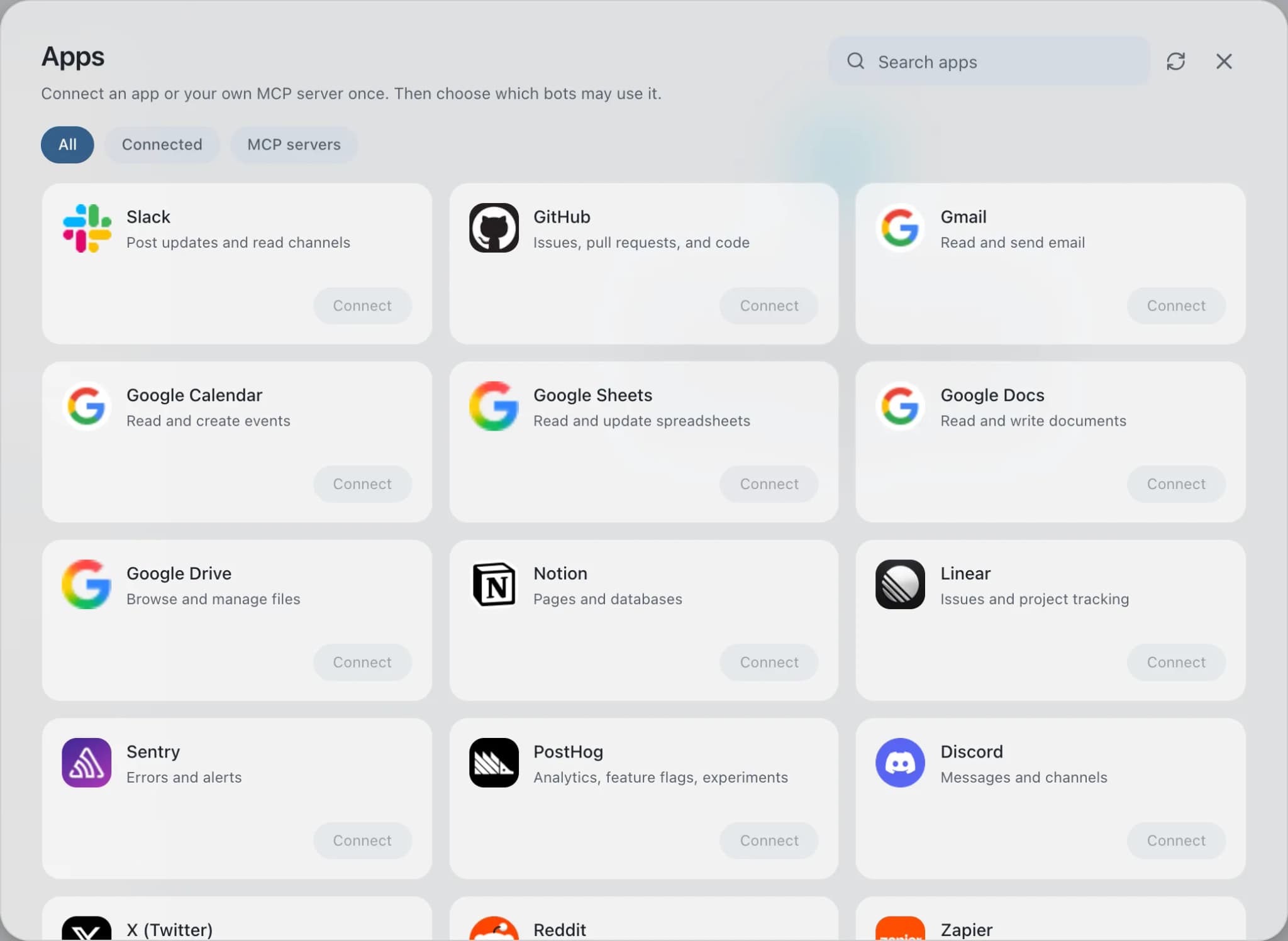
Open Connected apps
In Brainwrite, choose Connected apps in the sidebar. The official app sets up the connection service for you; there's no key to paste.
- 02
Search for Google Meet
Find Google Meet and choose Connect. You can add more than one account later and label each, such as work or a client.
- 03
Sign in in your browser
Finish Google Meet's own sign-in in your normal browser. The access token stays with the connection service and never enters a bot's prompt.
- 04
Choose which bots get it
In each bot's settings, give it all tools, an exact list, or none. Imported bots start with none, so nothing reaches your account by surprise.
Put it to work
Use cases with Google Meet.
FAQ
Brainwrite and Google Meet: questions
How do I connect Google Meet to Brainwrite?
Open Connected apps, search for Google Meet, and select Connect. Give the account a label, then finish Google's sign-in in the browser window that opens. Return to Brainwrite and ask a bot about a past meeting. The OAuth token stays with Composio and is not written into any prompt.
Why can't the bot find a transcript?
Google Meet only creates a transcript when transcription is turned on for that meeting, and some Google Workspace plans don't include it. The bot can still list the conference record and its participants. If transcripts matter for every call, turn transcription on in Meet or use a note-taker app.
How do I limit what a bot can do in Google Meet?
In the bot's settings under Connected apps, set Google Meet to all tools, an exact list, or none. A recap bot needs only the conference record, participant, and transcript tools, so you can leave out creating spaces and ending conferences. Ungranted tools are never offered to the model.
Calendar and meetings
More calendar and meetings.

Google Calendar
Bots read your Google Calendar, find free slots, and create or move events. Invites wait for your approval.

Zoom
Bots schedule Zoom meetings, list recordings and attendees, and turn meeting summaries into follow-ups.

Fireflies
Bots read Fireflies transcripts, ask AskFred about calls, and turn what was said into follow-ups and CRM notes.





Give your AI team Google Meet.
Download the app, connect the AI you already pay for, and tell your Chief of Staff what needs doing.
macOS today. Windows and Linux are coming soon.