Integration · Calendar and meetings
Cal.com AI agents for bookings, slots, and schedules
Brainwrite connects Cal.com to your AI agents so they can fetch bookings, check available slots, create, reschedule, or cancel bookings, and edit event types and availability schedules. You connect Cal.com in your browser. Changes that affect other people, such as cancelling or rescheduling a booking, come to you as approval cards unless you've allowed them.
 Brainwrite · Cal.com
Check my Cal.com bookings for next week. List anything still waiting for confirmation with the attendee's notes so I can decide. Also block Friday afternoon in my default availability schedule.


You connect Cal.com once. Your Chief of Staff puts a bot on it.
- Fetch all bookings
- Get available slots for an event type
- Create a new bookingWaits for you
- Reschedule or cancel a booking (approval card unless allowed)Waits for you
- Confirm a booking, or decline it with a reason
In Cal.com
What your bots can do in Cal.com.
- Fetch all bookings
- Get available slots for an event type
- Create a new booking
- Reschedule or cancel a booking (approval card unless allowed)
- Confirm a booking, or decline it with a reason
- List and edit event types
- Edit an availability schedule
- Mark a booking's attendee as absent
Chief of Staff
- Booking review
- Availability changes
- Call prep
Changes in Cal.com wait for your approval in Ask mode
Jobs
Jobs your team does with Cal.com.
Booking review
List bookings waiting for confirmation with each attendee's notes, so you can confirm or decline in one pass.
Availability changes
Block time off or change working hours in your schedule when your week changes.
Call prep
Turn tomorrow's bookings into short briefs using the attendee's answers and your past emails with them.
Set up
How to connect Cal.com.
- 01
Open Connected apps
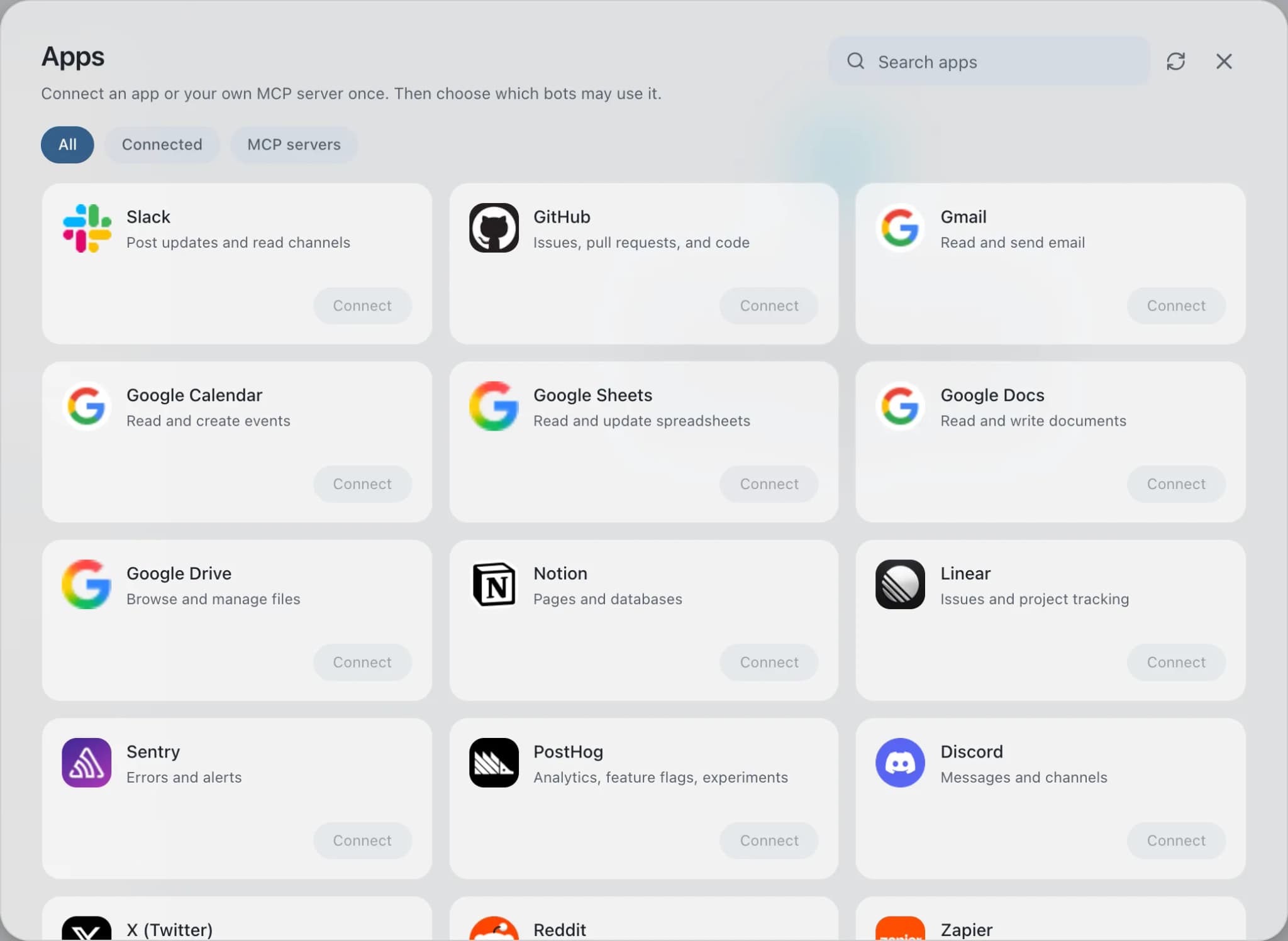
In Brainwrite, choose Connected apps in the sidebar. The official app sets up the connection service for you; there's no key to paste.
- 02
Search for Cal.com
Find Cal.com and choose Connect. You can add more than one account later and label each, such as work or a client.
- 03
Sign in in your browser
Finish Cal.com's own sign-in in your normal browser. The access token stays with the connection service and never enters a bot's prompt.
- 04
Choose which bots get it
In each bot's settings, give it all tools, an exact list, or none. Imported bots start with none, so nothing reaches your account by surprise.
Put it to work
Use cases with Cal.com.
FAQ
Brainwrite and Cal.com: questions
How do I connect Cal.com to Brainwrite?
Open Connected apps, search for Cal.com, and select Connect. Label the account, then complete authorization in the browser window that opens. Back in Brainwrite, bots with a Cal.com grant can read and manage your bookings. Credentials stay with Composio and never appear in a bot's prompt.
How do I limit what a bot can do in Cal.com?
Open the bot's settings, find Cal.com under Connected apps, and choose all tools, an exact list, or none. A prep bot can get fetch bookings and available slots only. A scheduling bot might add create and reschedule but leave out deleting event types and schedules.
Does it work with Cal.com teams?
Composio's Cal.com toolkit includes team tools such as team event types, team bookings, and team schedules, as well as personal ones. What a bot can see still depends on the permissions of the Cal.com account you connected.
Calendar and meetings
More calendar and meetings.

Calendly
Bots read Calendly bookings and invitee answers, create one-time booking links, and flag no-shows.

Google Calendar
Bots read your Google Calendar, find free slots, and create or move events. Invites wait for your approval.

Zoom
Bots schedule Zoom meetings, list recordings and attendees, and turn meeting summaries into follow-ups.





Give your AI team Cal.com.
Download the app, connect the AI you already pay for, and tell your Chief of Staff what needs doing.
macOS today. Windows and Linux are coming soon.