Integration · Developer tools
GitLab AI agents for merge requests and pipelines
Brainwrite connects GitLab to your AI agents so they can review merge requests, triage issues, and read pipeline jobs. A bot can read an MR's diffs and discussions, leave notes, and check its approval state, or pull a failed job's trace and explain the error. Merging a merge request waits for an approval card unless you've allowed it.
 Brainwrite · GitLab
List merge requests in group/app that target main and have been open more than two days. For each, read the diff and tell me whether it has tests and whether its pipeline passed.


You connect GitLab once. Your Chief of Staff puts a bot on it.
- List merge requests and read their diffs, commits, and discussionsWaits for you
- Create merge requests and draft notes on themWaits for you
- Approve or merge a merge request (waits for an approval card unless you've allowed it)Waits for you
- Create, update, and move project issues, and add notesWaits for you
- List pipelines and jobs, read a job's trace, and retry a pipeline
In GitLab
What your bots can do in GitLab.
- List merge requests and read their diffs, commits, and discussions
- Create merge requests and draft notes on them
- Approve or merge a merge request (waits for an approval card unless you've allowed it)
- Create, update, and move project issues, and add notes
- List pipelines and jobs, read a job's trace, and retry a pipeline
- List branches and commits, and read repository files
- Create labels and milestones
Chief of Staff
- MR first pass
- Pipeline failure digest
- Milestone check
Changes in GitLab wait for your approval in Ask mode
Jobs
Jobs your team does with GitLab.
MR first pass
A bot reads the diff of each new merge request and leaves draft notes on missing tests and risky changes for the author to see.
Pipeline failure digest
A routine lists failed pipelines on the default branch, reads each job's trace, and groups failures by cause.
Milestone check
A bot lists open issues and merge requests in a milestone and flags what will not make the date.
Set up
How to connect GitLab.
- 01
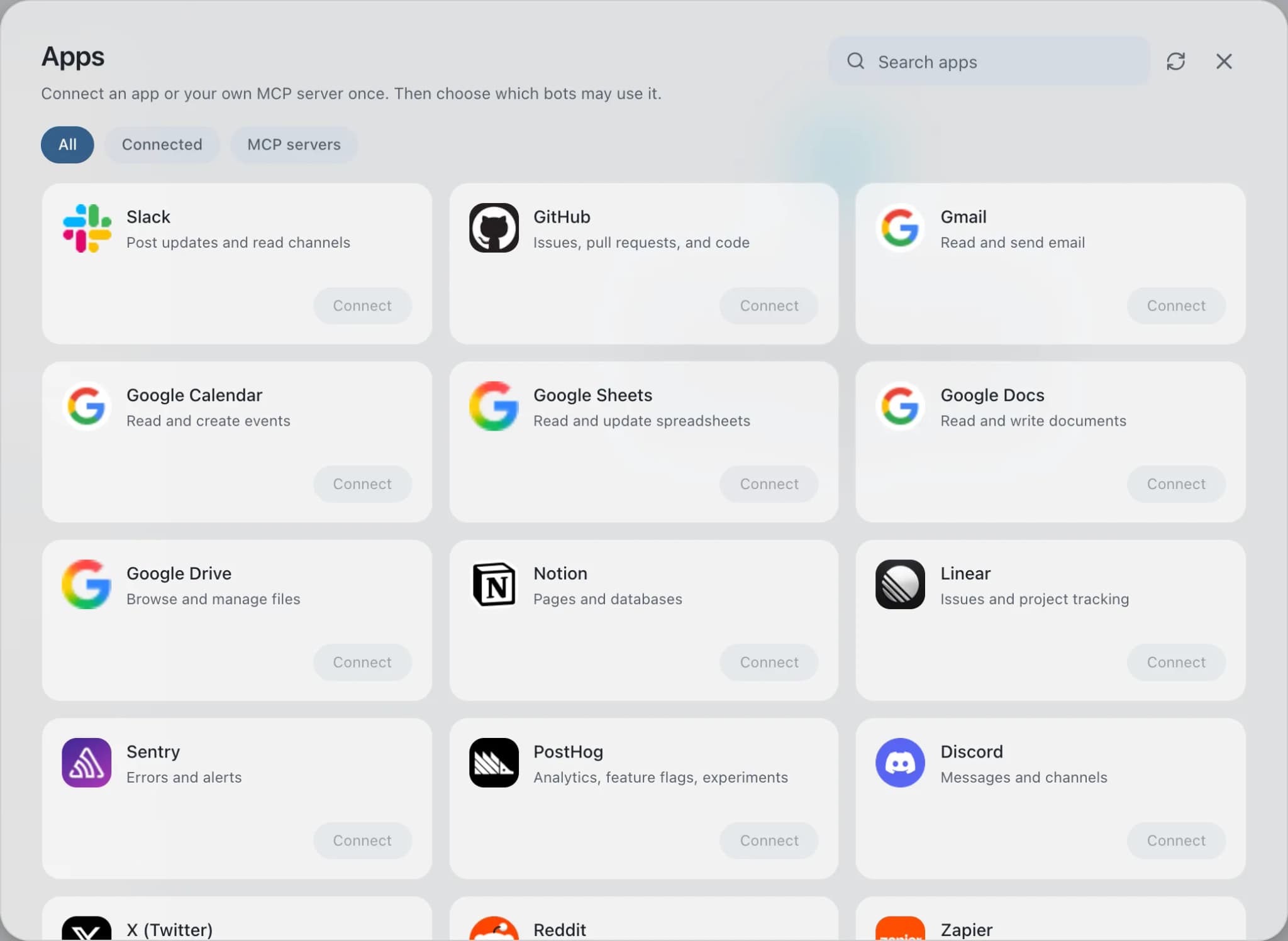
Open Connected apps
In Brainwrite, choose Connected apps in the sidebar. The official app sets up the connection service for you; there's no key to paste.
- 02
Search for GitLab
Find GitLab and choose Connect. You can add more than one account later and label each, such as work or a client.
- 03
Sign in in your browser
Finish GitLab's own sign-in in your normal browser. The access token stays with the connection service and never enters a bot's prompt.
- 04
Choose which bots get it
In each bot's settings, give it all tools, an exact list, or none. Imported bots start with none, so nothing reaches your account by surprise.
Put it to work
Use cases with GitLab.
Issue triage
A bot reads new issues, groups duplicates, and proposes labels, priority, and owners for you to approve.
Engineering
Release readiness
Rigel sweeps open pull requests each weeknight and reports what is ready, stalled, or failing. You merge.
Engineering
Weekly report
Each Friday the Chief of Staff gathers shipped work, open issues, and pipeline changes into one report you approve.
Operations
FAQ
Brainwrite and GitLab: questions
How do I connect GitLab to Brainwrite?
Open Connected apps, search for GitLab, and choose Connect. GitLab's authorization opens in your browser; approve and return to Brainwrite. Ask a bot with GitLab tools to list your projects to check it worked. The token stays with Composio and never appears in a prompt.
How do I stop a bot from merging or deleting in GitLab?
Open the bot's settings and, under Connected apps, switch GitLab to an exact list. Grant read tools for merge requests, pipelines, and issues, plus note creation if you want comments. Leave out merge, delete, and branch protection tools. Ungranted tools are never offered to the bot's model.
Can a bot retry or cancel a GitLab pipeline?
Yes, the connector includes tools to create, retry, and cancel pipelines and to play or cancel a job. They are useful for a release bot, but they change shared state, so grant them only to the bot that needs them and keep the thread in Ask mode.
Developer tools
More developer tools.

GitHub
Triage GitHub issues, review pull requests, read failing workflow logs, and draft release notes. Merges wait for you.

Bitbucket
Review Bitbucket pull requests, check Pipelines, search code, and keep merges behind your approval.

Sentry
Triage new Sentry errors, read events and tags, check release health, and resolve or assign issues.

Vercel
Check Vercel deployments, read build and runtime logs, verify domains, and keep production promotions behind approval.





Give your AI team GitLab.
Download the app, connect the AI you already pay for, and tell your Chief of Staff what needs doing.
macOS today. Windows and Linux are coming soon.